Step-by-Step Instructions:
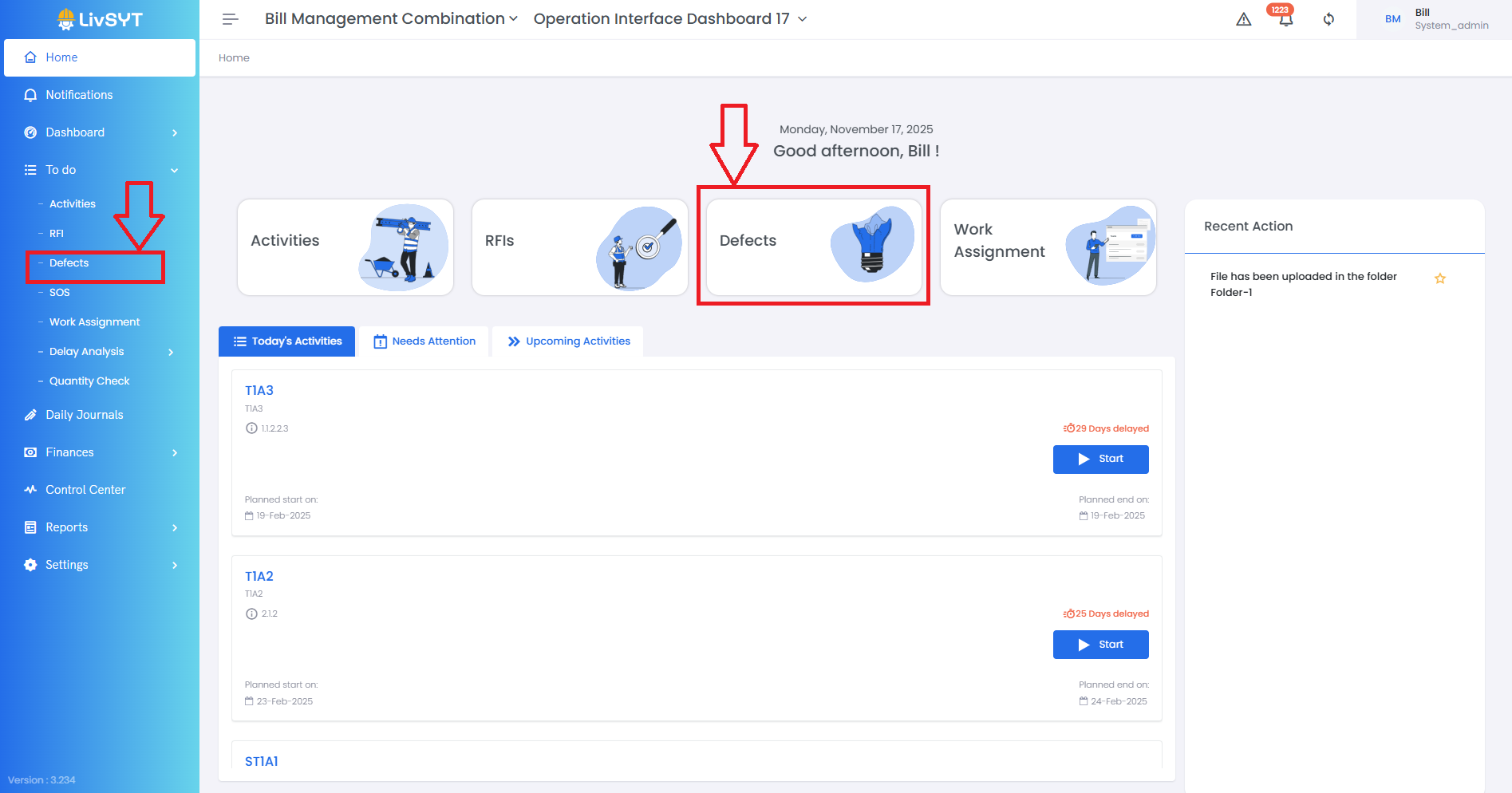
1) Open the Defects section
- Go to Home → Defects or To Do → Defects.
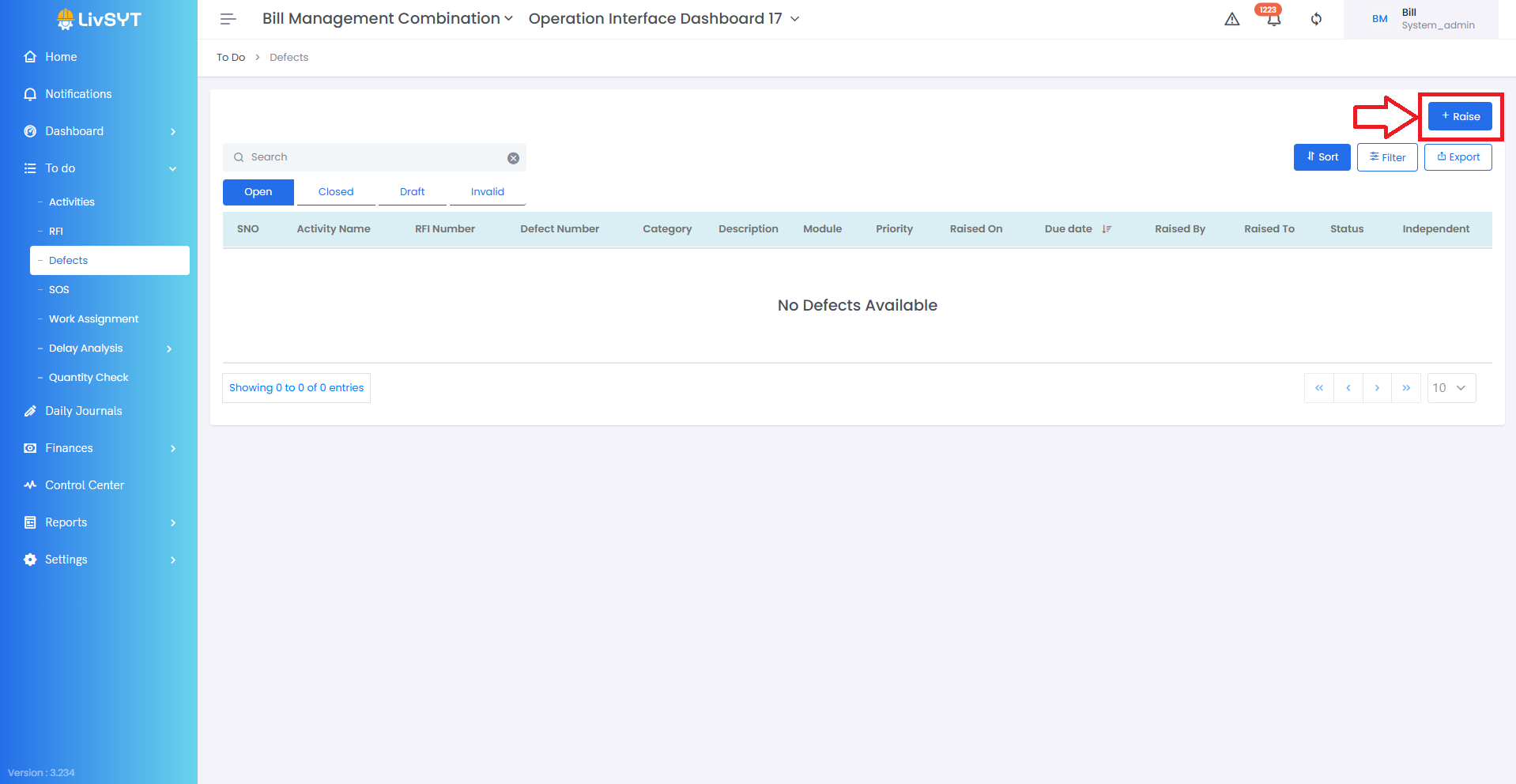
2) Start raising a defect
- Click Raise in the top-right corner.
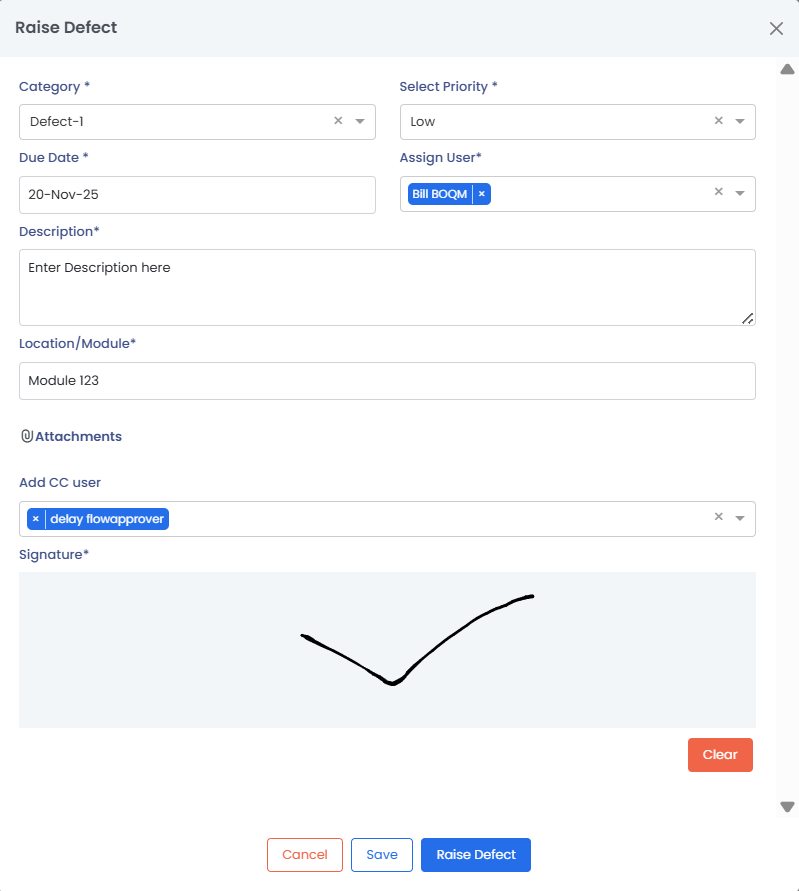
3) Enter defect details
- Select the Category.
- Choose the Priority (High/Medium/Low).
- Enter the Due Date.
- Select the Responsible User.
- Write a clear Description of the defect.
- Select the Location/Module.
- Attach pictures or documents if needed.
4) Add your signature
- Add your Signature at the bottom.
5) Submit the defect
- Click Raise Defect.
Note:
- If you click Save, the defect will be moved to the Draft column.
- To submit it later, open the draft → click Edit → add your signature → click Raise Defect.
Tips & Best Practices:
- Always give a clear description so the responsible user understands the issue.
- Add photos whenever possible for better clarity.
- Set a realistic due date based on the work needed.
- Make sure you select the correct category and location to avoid confusion.
- For any issues, contact LivSYT Support.
Related Resources:
How to add Defect/RFI/Delay/Catch Up/Drawing Category?
Was this article helpful?
That’s Great!
Thank you for your feedback
Sorry! We couldn't be helpful
Thank you for your feedback
Feedback sent
We appreciate your effort and will try to fix the article