Purpose: To guide users on how to review and reject an RFI (Request for Inspection) when it does not meet the required quality or conditions.
Step-by-Step Instructions:
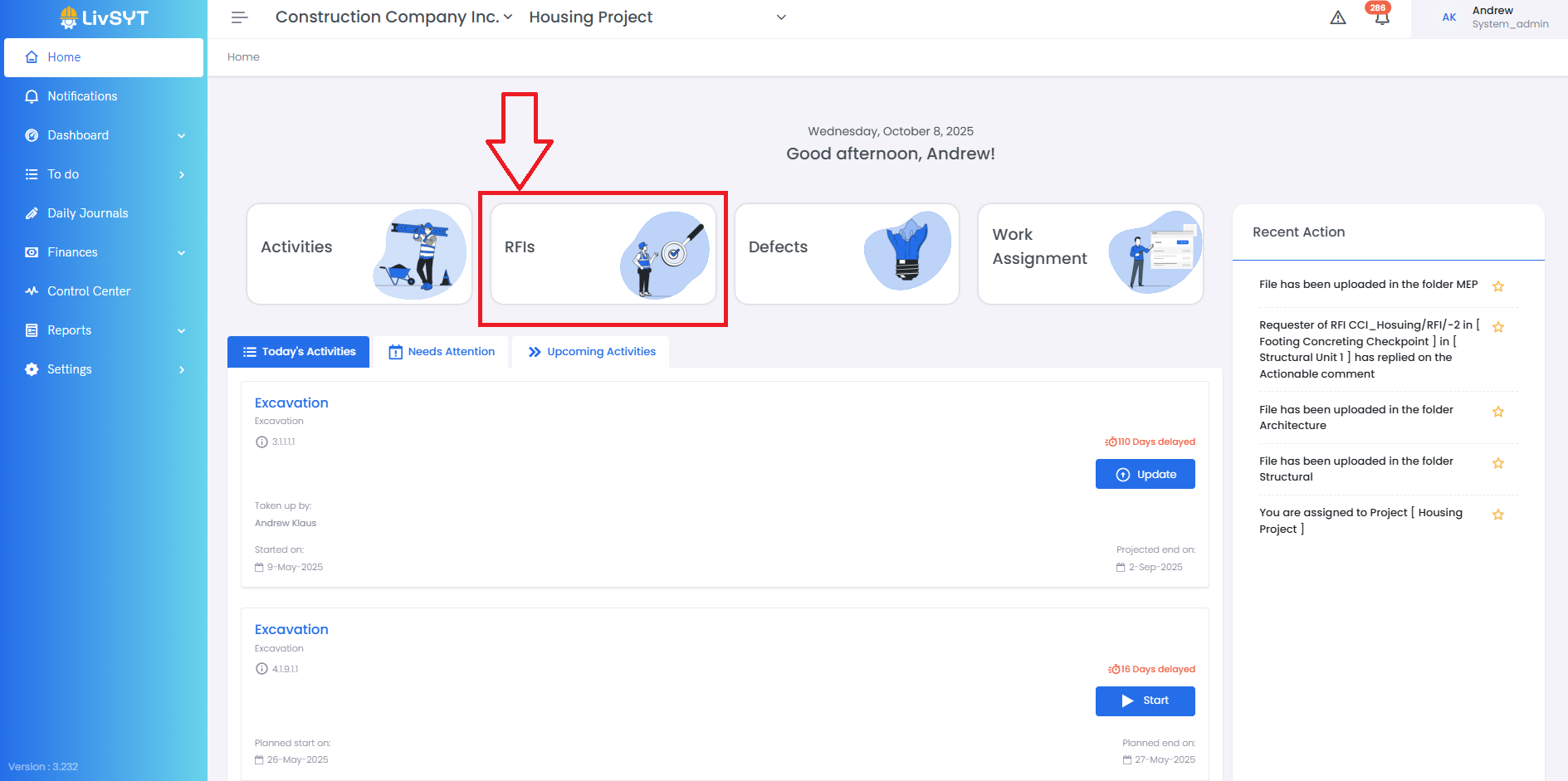
1. Open the RFI section
- On the Home Page, click on RFI.
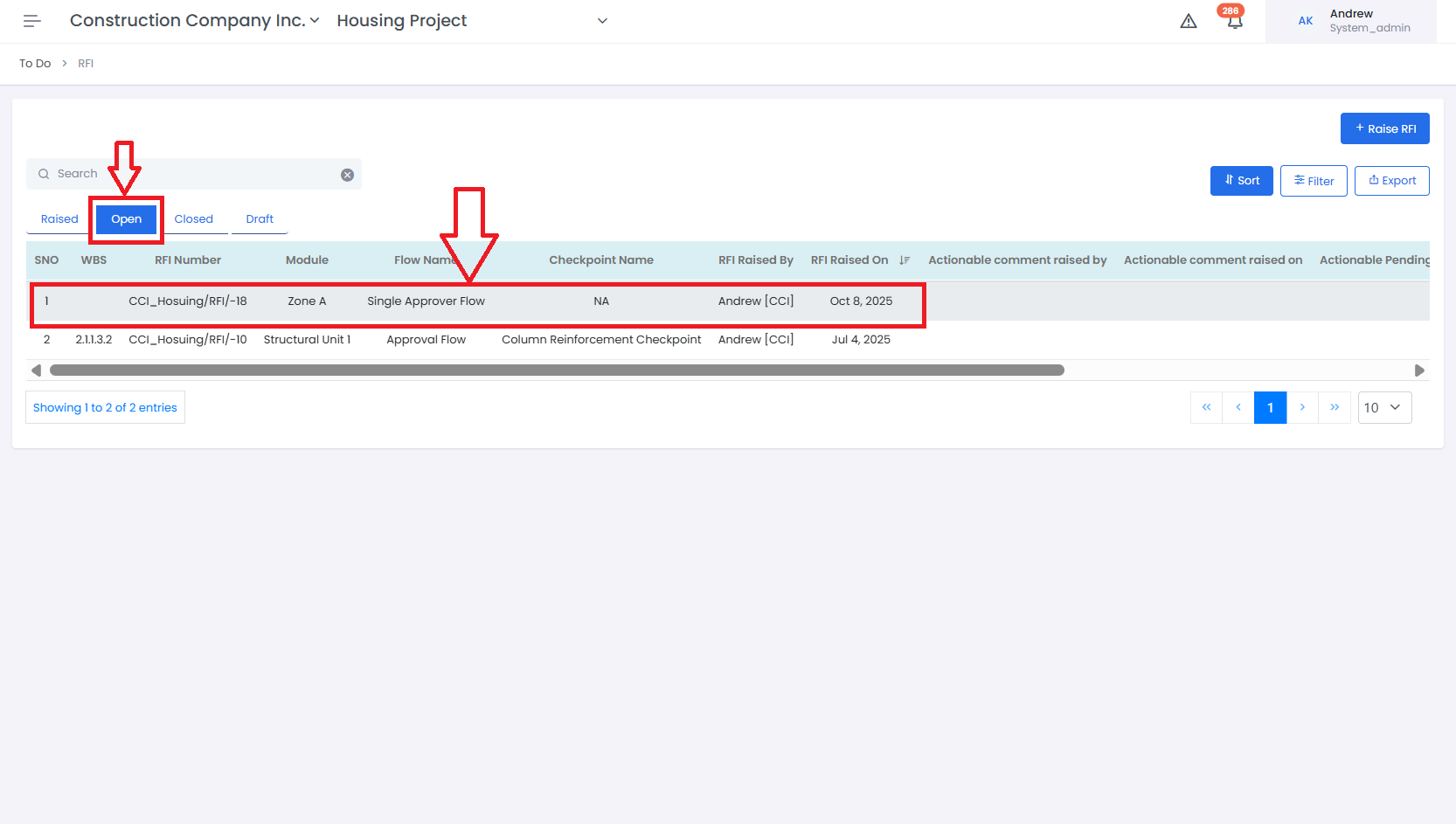
- Go to the Open section and select the RFI you want to review.
2. Review the RFI details
- The raised RFI will appear under the Open tab.
- Select the RFI to view its details.
3. Raise defects if needed
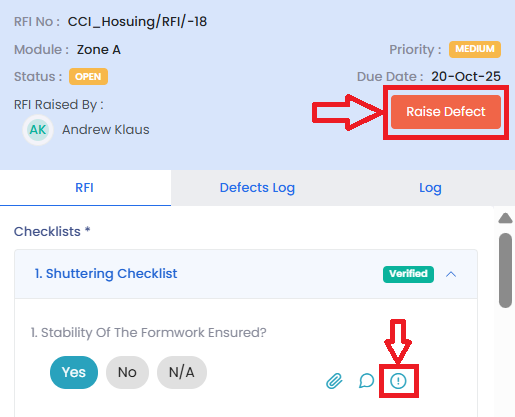
- If you find issues, you can raise a Defect:
- Either in individual checklist items, or
- By clicking on the Raise Defect button at the top.
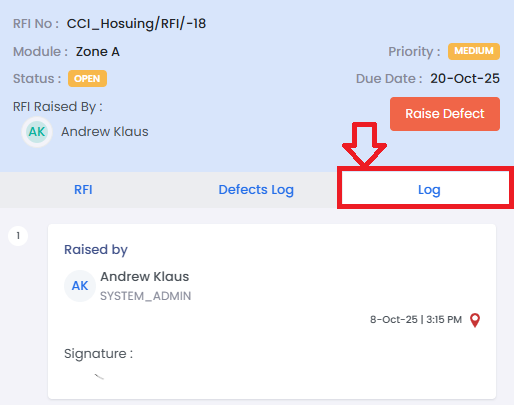
4. Check the RFI log
- Click on the Log section to view the RFI’s timeline, including date and time stamps.
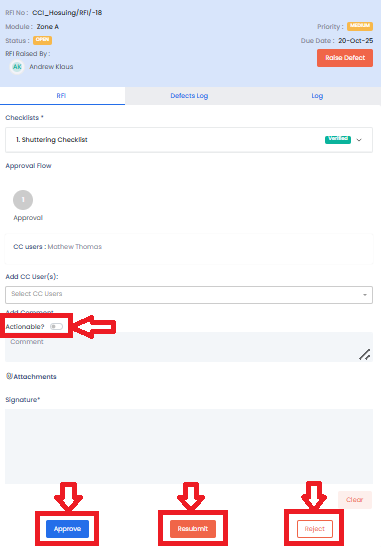
5. Take action on the RFI
- Based on the inspection results, you can Approve, Reject, or Resubmit the RFI.
- You can also make the RFI Actionable and set a Due Date if further work is required.
Tips & Practices:
- Always mention a clear reason for rejection so the submitter knows what to fix.
- Check all attachments and checklist details before rejecting.
- Use the Raise Defect option for specific issues instead of rejecting the entire RFI when possible.
- Review the Log section to confirm previous actions before making a final decision.
- Communicate politely and clearly to help close RFIs faster and avoid repeated submissions.
- For any issues, contact LivSYT Support.
Related Resources:
How to Raise an RFI?
How to Approve an RFI?
Was this article helpful?
That’s Great!
Thank you for your feedback
Sorry! We couldn't be helpful
Thank you for your feedback
Feedback sent
We appreciate your effort and will try to fix the article