Purpose:
To guide users through the process of raising, submitting, and tracking an RFI for inspection in livSYT.
Step-by-Step Instructions:
1. Start a New RFI
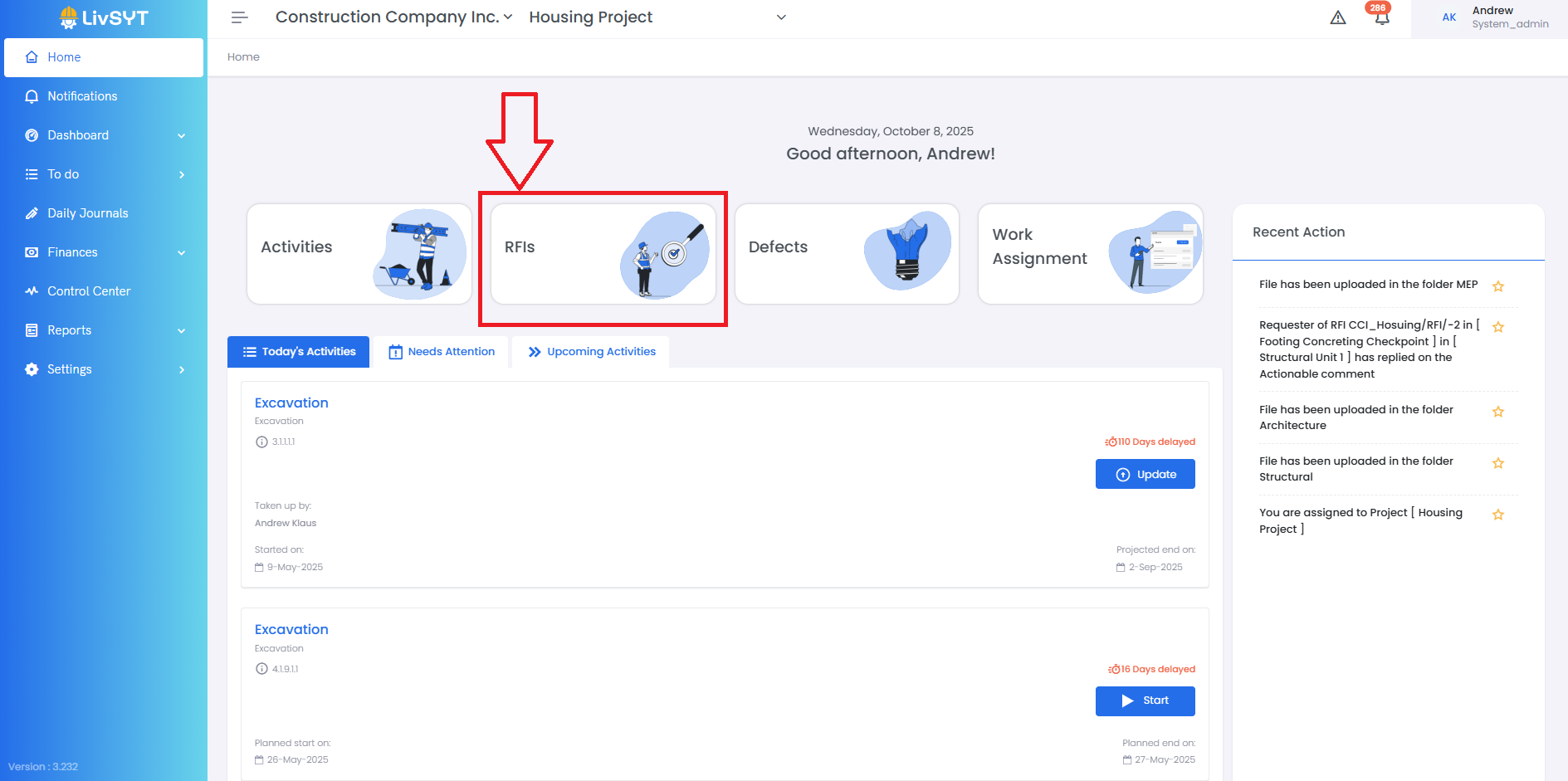
- On the Home Page, click RFI.
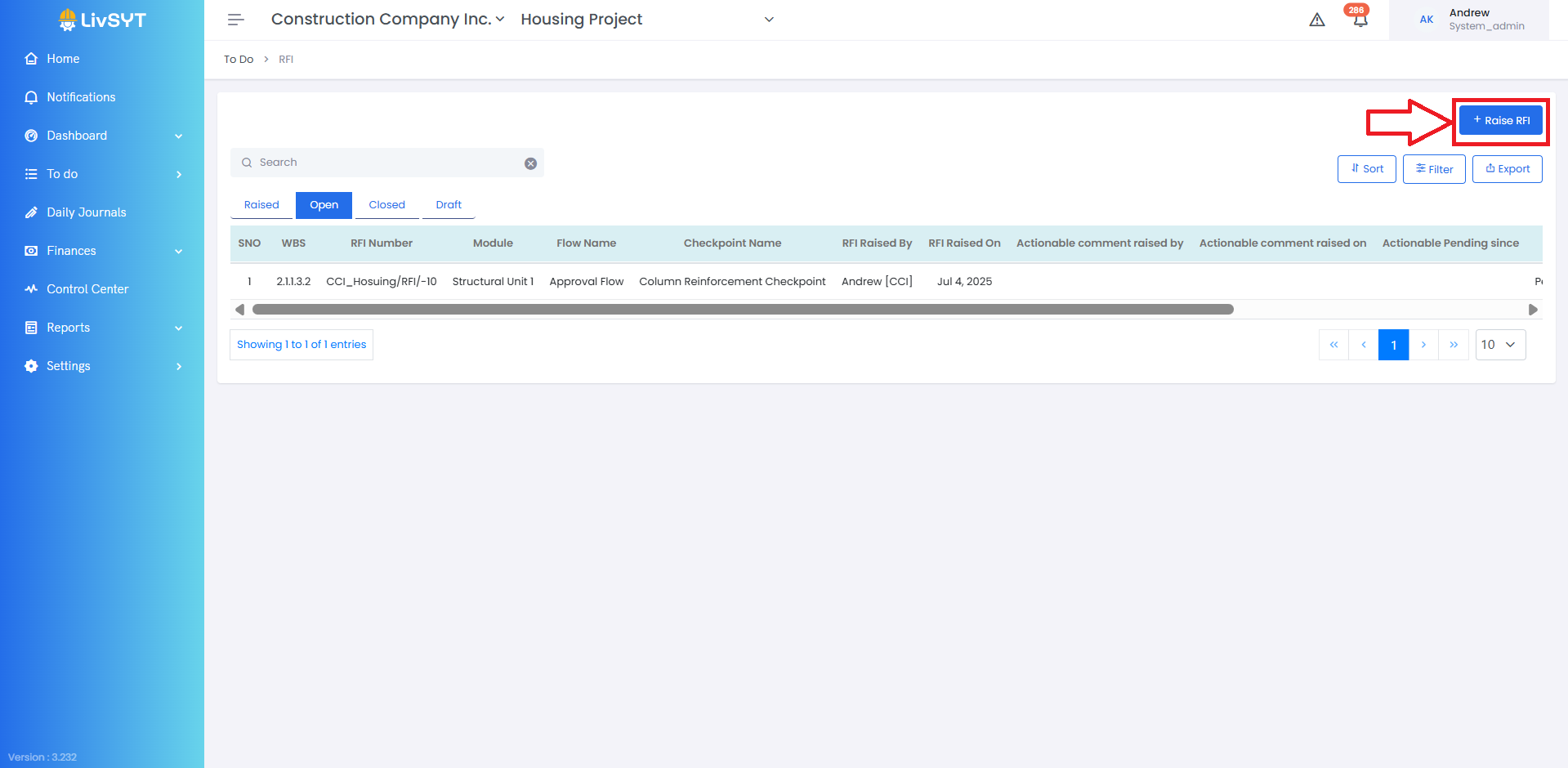
- Click Raise RFI on the top-right corner.
2. Fill in Basic Details
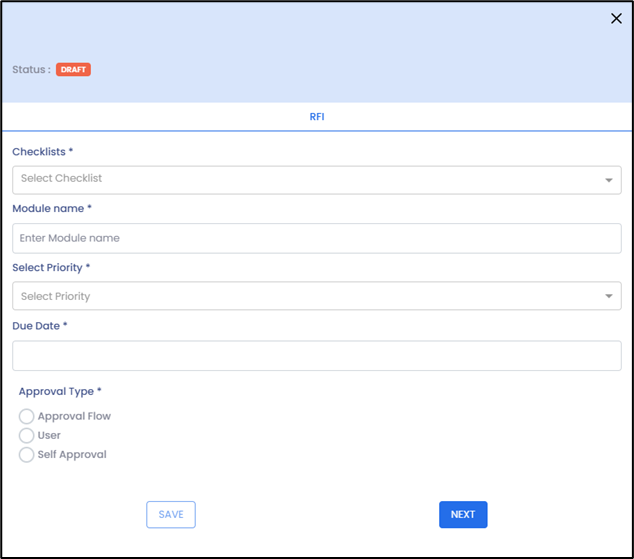
- Select the precreated Checklist.
- Enter the Module Name.
- Set the Priority (High / Medium / Low).
- Enter the Due Date.
- Choose the Approval Type:
i) Approval Flow – Select a pre-created RFI flow.
ii) User – Choose a user to approve the RFI.
iii) Self Approval – For self-approved RFIs.
- Click Next.
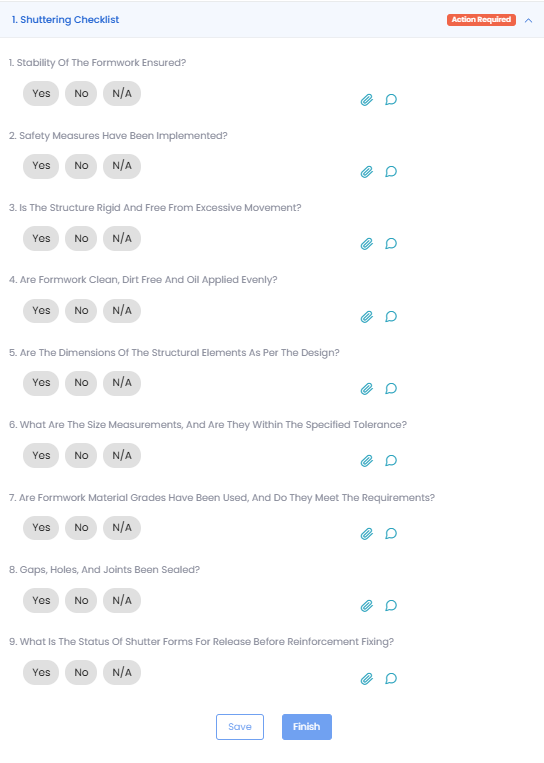
3. Complete the Checklist
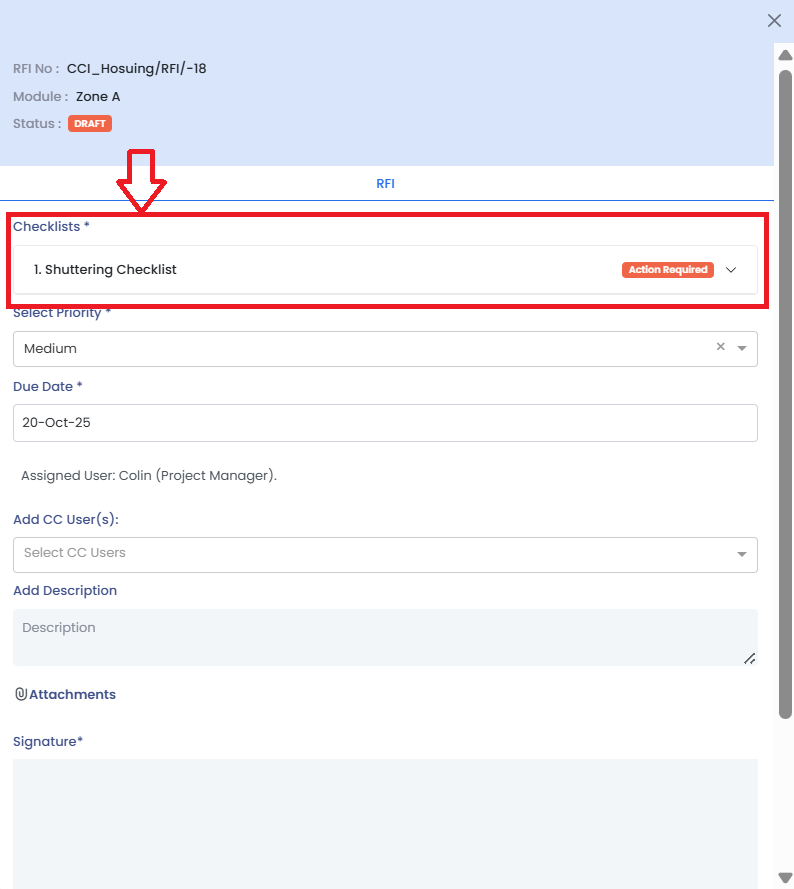
- Fill in the checklist and click Save.
- Attach any image/document, and add a comment if needed.
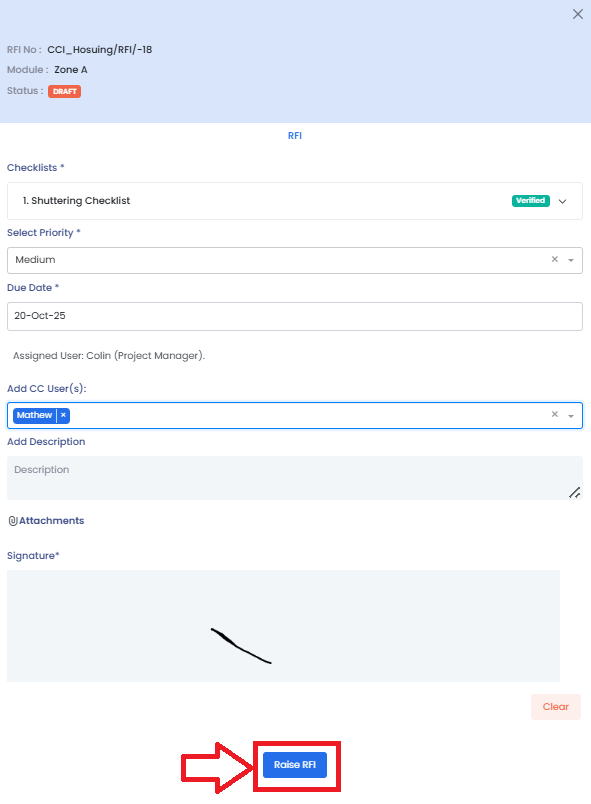
4. Add Details and Submit
- Optionally, add CC Users.
- Provide a description and attach supporting files for clarity.
- Add your signature.
- Click Raise RFI to submit.
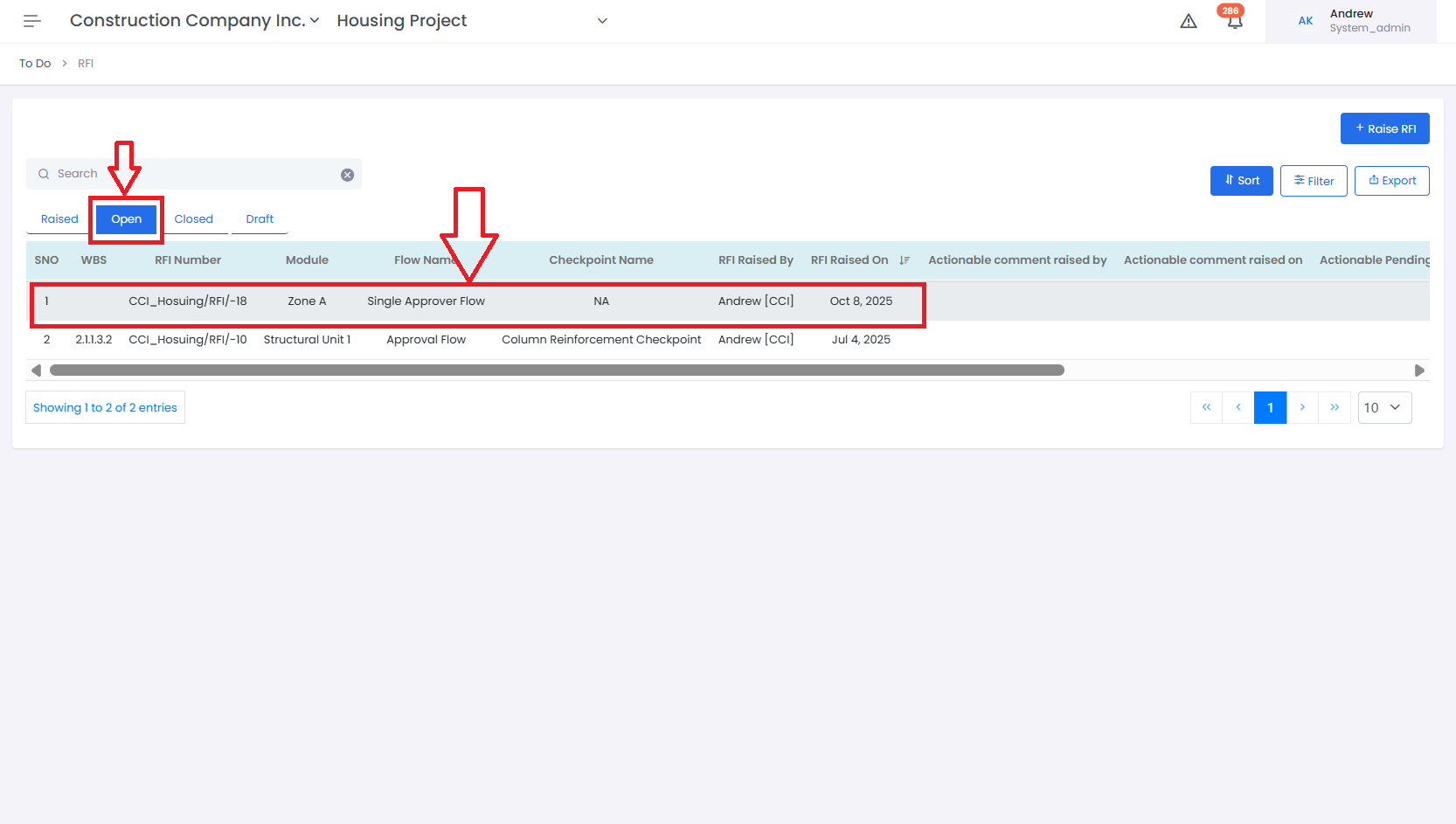
5. Review and Approval
- The raised RFI will appear under the Open tab.
- Select the RFI to view its details.
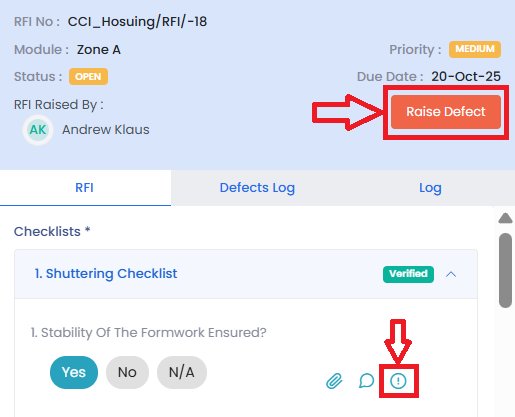
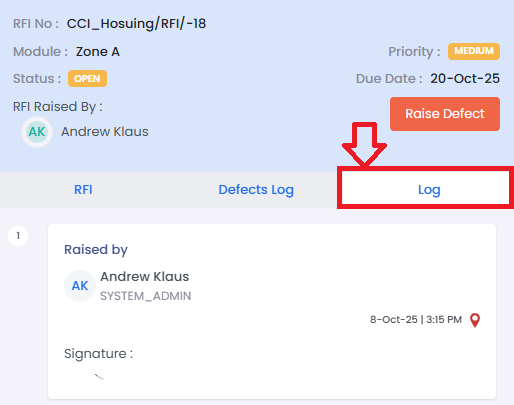
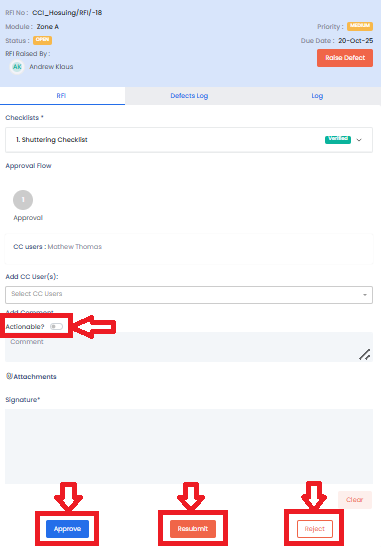
- The Approver can review the same form, raise Defects (either line-wise or via the Raise Defect button), and view timelines under the Log section (with date and time stamps).
- Based on quality verification, the Approver can Approve, Reject, or Resubmit the RFI.
- Approver also has the option to make the RFI Actionable and give a due date
6. After Approval
- Once approved, the RFI moves to the Closed section.
Tips and Practices:
- Always check the checklist items carefully before approving to make sure the work matches site quality.
- If something looks incomplete or wrong, use the Raise Defect option instead of rejecting the whole RFI.
- Check the Log section to see when and by whom the RFI was created or updated.
- Add clear comments when rejecting or resubmitting an RFI, so the team knows what to fix.
- Only mark the RFI as Actionable when some action or follow-up is required from another user.
- Approve the RFI only when you are fully satisfied with the inspection and supporting attachments.
- For any issues, contact LivSYT Support.
Related Resources:
How to Approve an RFI?
What is an RFI?
Was this article helpful?
That’s Great!
Thank you for your feedback
Sorry! We couldn't be helpful
Thank you for your feedback
Feedback sent
We appreciate your effort and will try to fix the article