Purpose:
To explain how users can raise a Change Order in livSYT using BOQ Details or Vendor Change/Termination.
Step-by-Step Instructions:
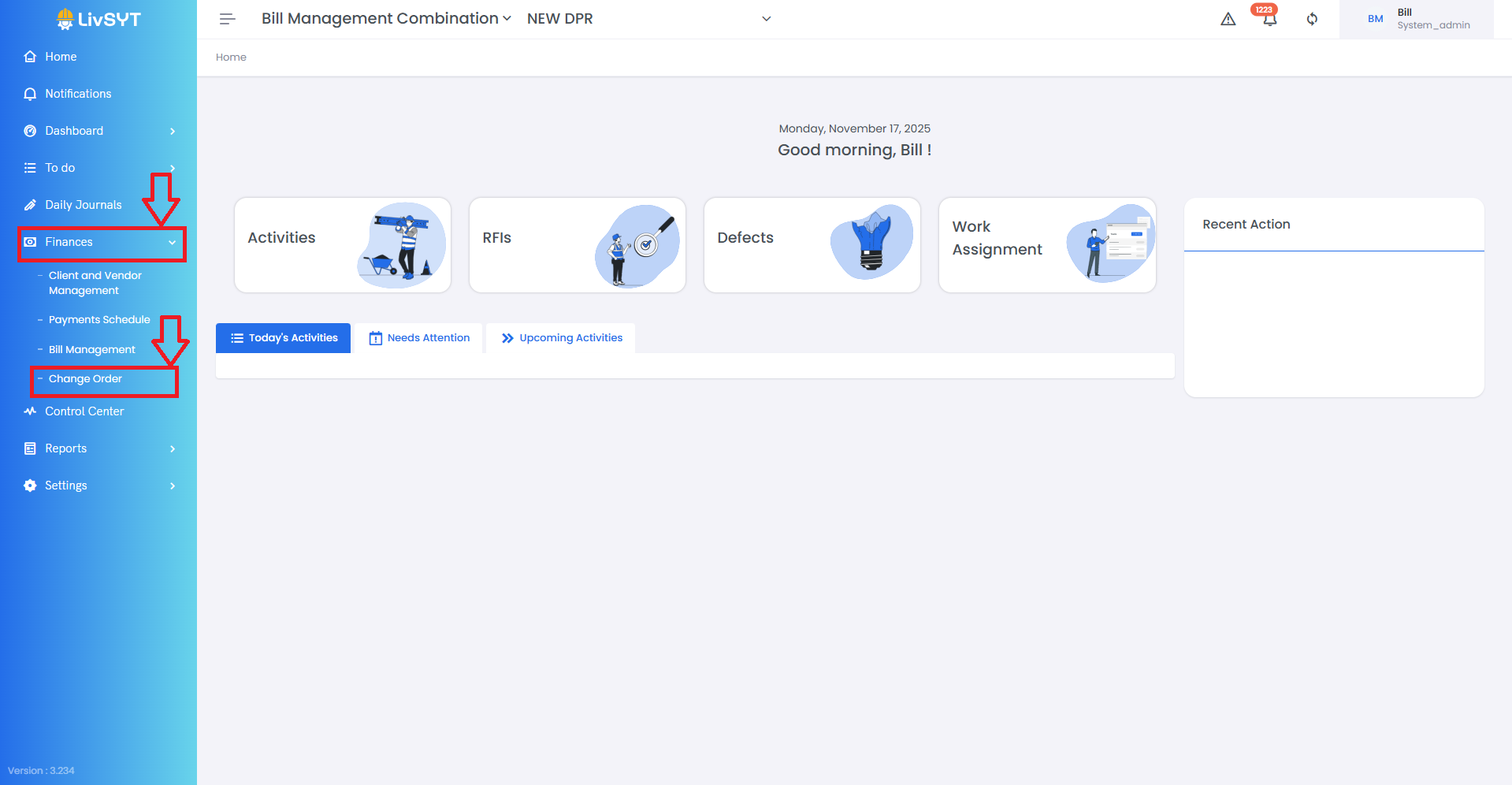
1) Open Change Order
- Go to Finances from the left menu.
- Click on Change Order.
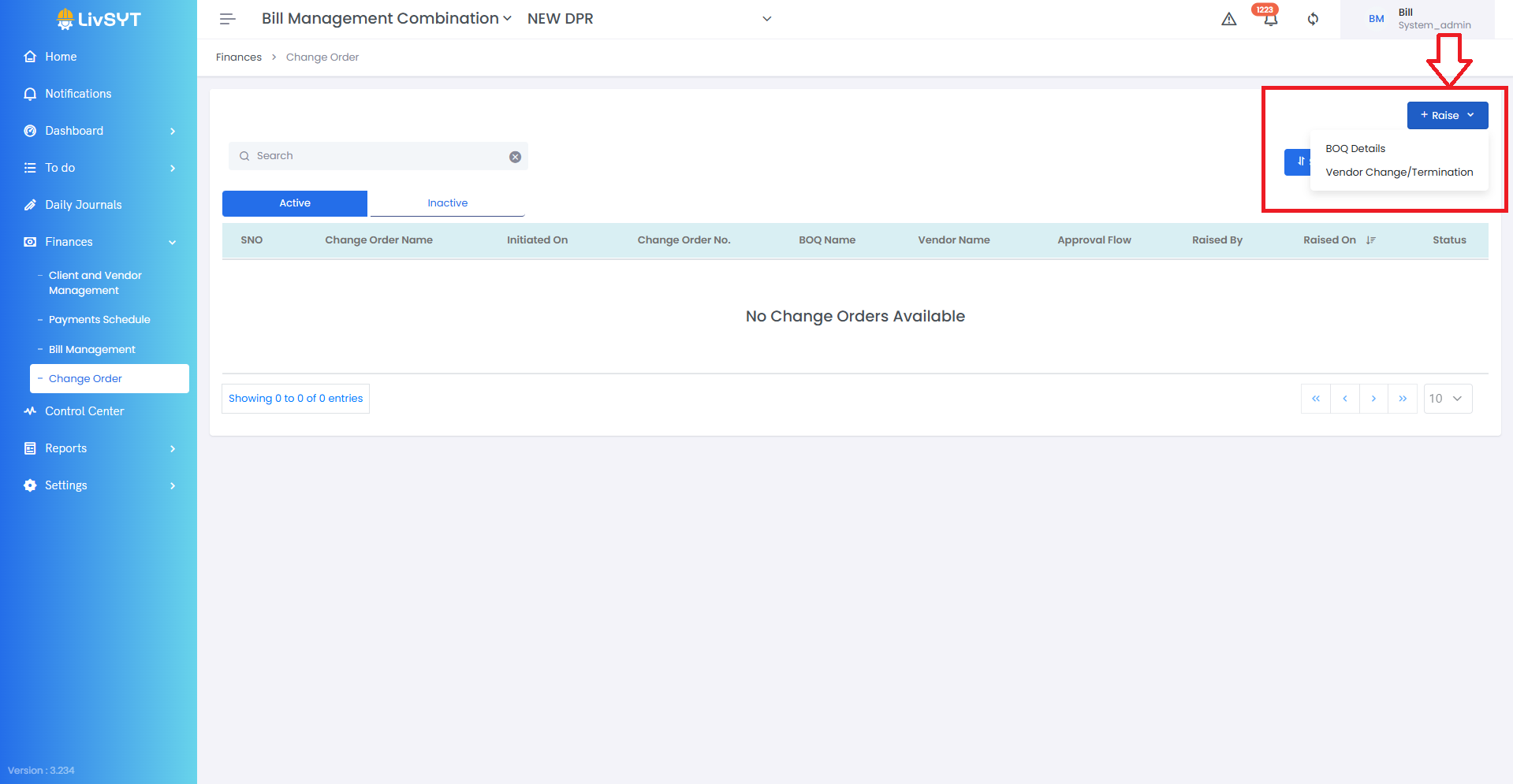
2) Start raising a Change Order
- Click Raise at the top-right corner.
- Choose either BOQ Details or Vendor Change/Termination.
Option i: BOQ Details
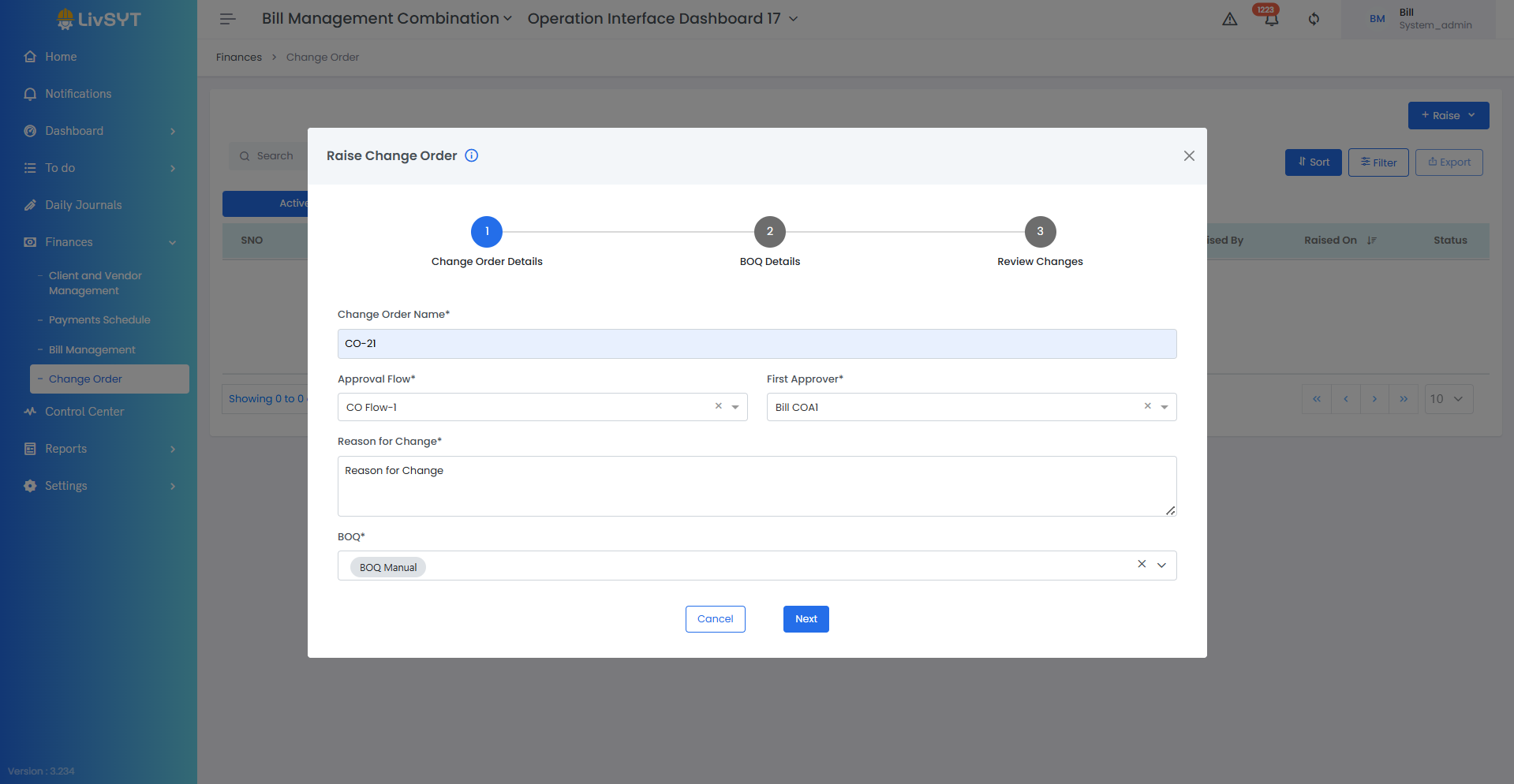
3) Enter basic details
- Type the Change Order Name (usually written as CO# or ChangeOrder#).
- Select the Approval Flow and First Approver.
- Select the BOQ Item you want to change.
- Enter the Reason for the change.
- Click Next.
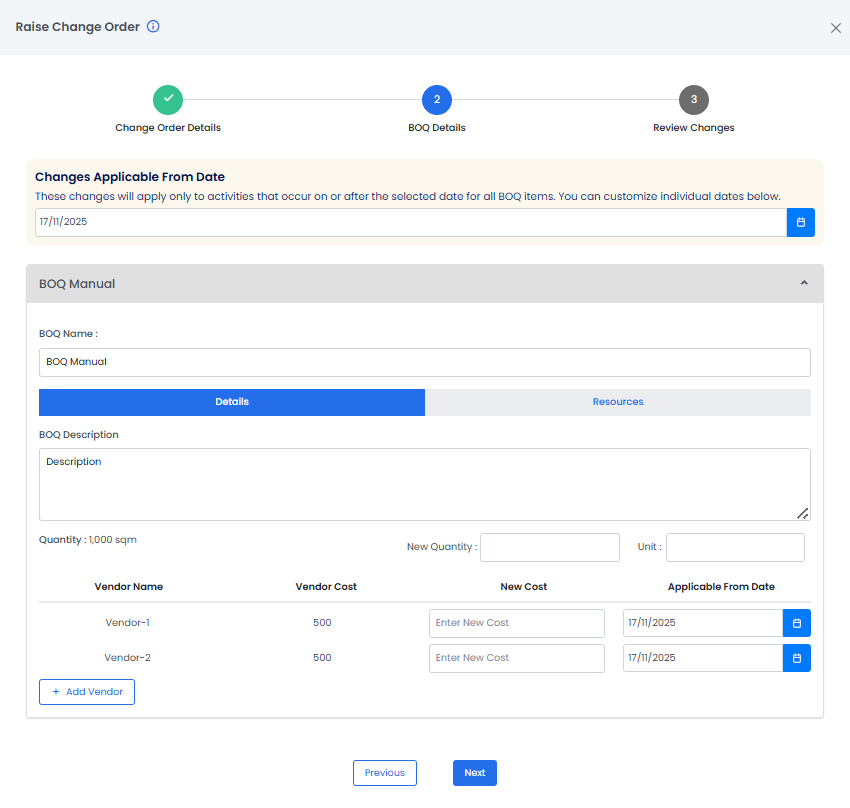
4) Enter updated values
- Enter the Changes Applicable from Date
- Click on the BOQ name
- Enter the new Quantity, Vendor, or Cost (whichever is required).
- Click Next.
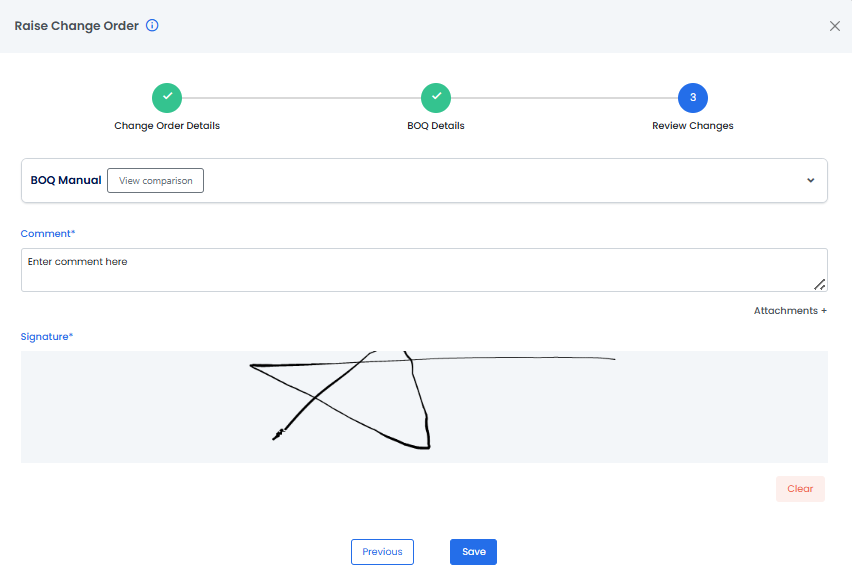
5) Submit the Change Order
- Add a Comment and your Signature.
- Click Save.
- The Change Order will now appear under the Active section.
Option ii: Vendor Change/Termination
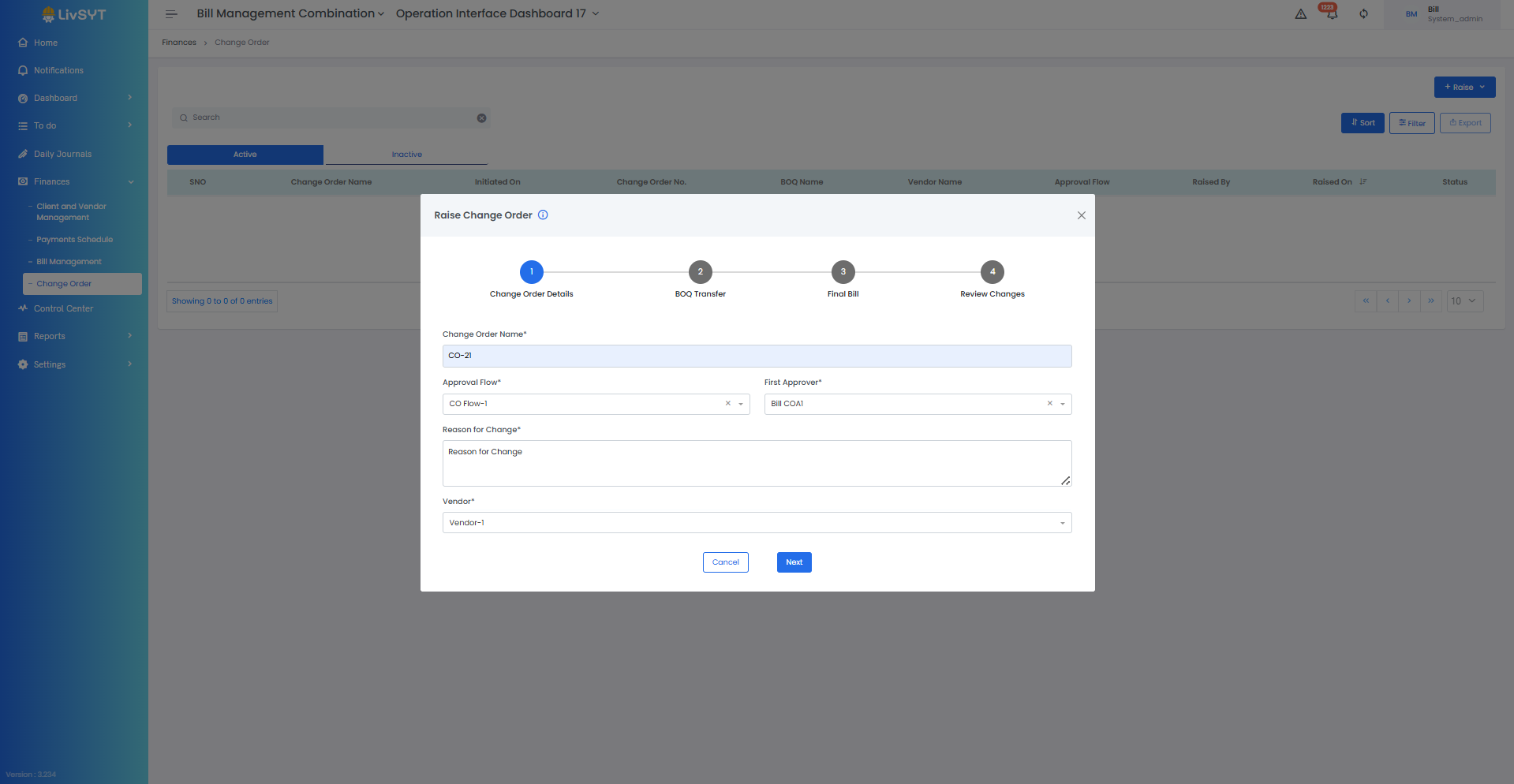
3) Enter basic details
- Type the Change Order Name.
- Select the Approval Flow and First Approver.
- Enter the Vendor Name.
- Enter the Reason for Change.
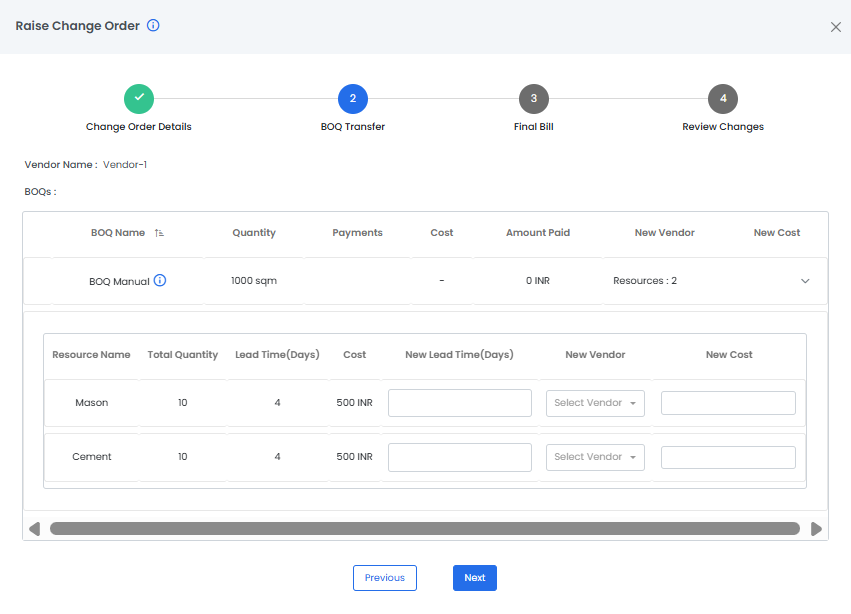
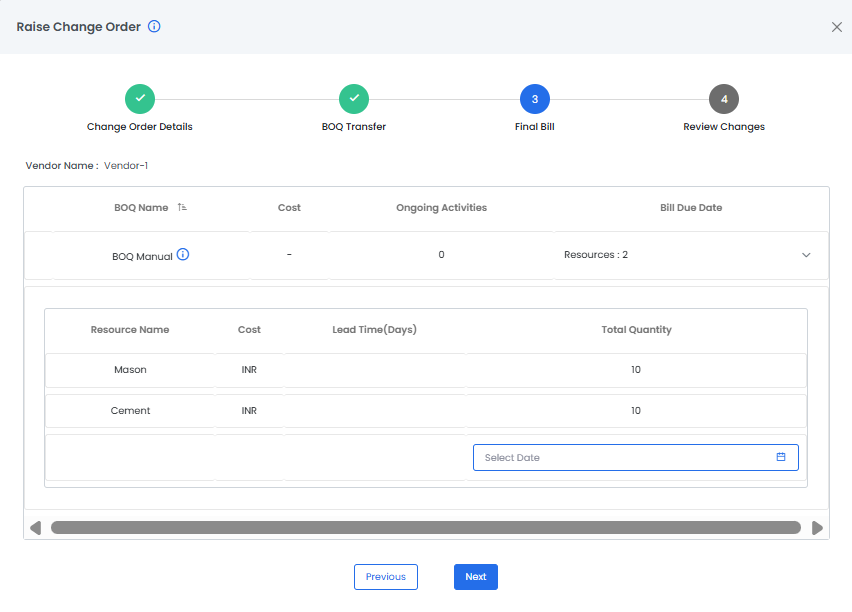
4) Review and submit
- For BOQ Transfer enter New Cost (if needed)
- For Final Bill enter the date (if needed)
- Under Review Changes, add a Comment (and Attachments if necessary) and your Signature.
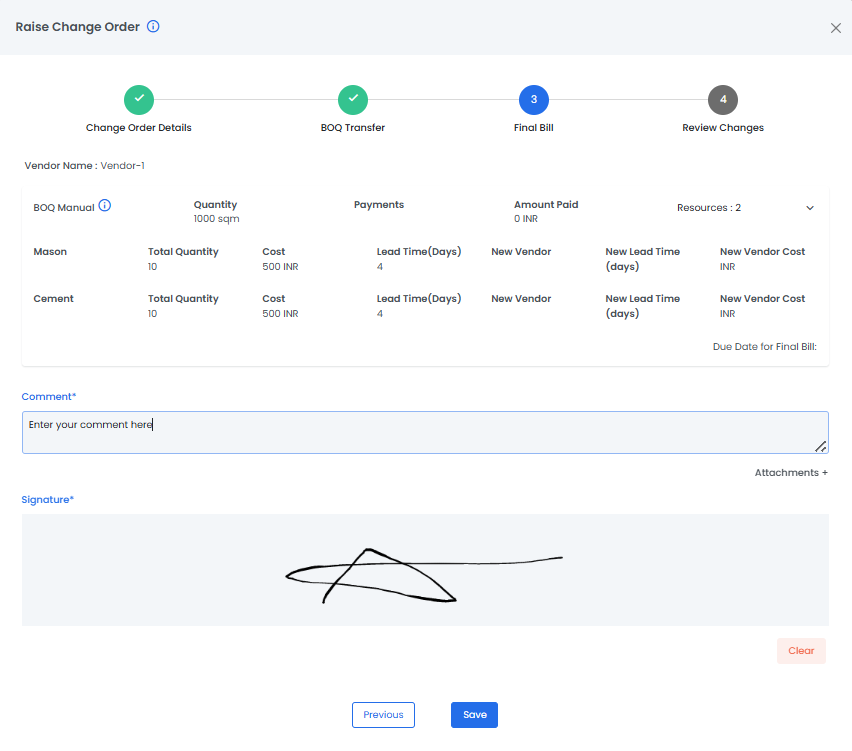
- Click Save.
- The Change Order will now appear under the Active section.
Tips & Best Practices:
- Double-check the BOQ item and vendor before submitting.
- Make sure the correct approver is selected to avoid delays.
- If changing vendor details, ensure BOQ Transfer and Final Bill options are correctly selected.
- Changes in BOQ values should always be backed with proper reason and documentation.
- For any issues, contact LivSYT Support.
Related Resources:
How to add roles in RFI/Delay/Bill/CO/BOQ Flow?
How to create a new RFI/Delay/Bill/CO/BOQ Flow?
Was this article helpful?
That’s Great!
Thank you for your feedback
Sorry! We couldn't be helpful
Thank you for your feedback
Feedback sent
We appreciate your effort and will try to fix the article