Purpose:
To explain how users can add a new Vendor in livSYT.
Step-by-Step Instructions:
1) Open Vendor Management
- Go to Finances → Client and Vendor Management.
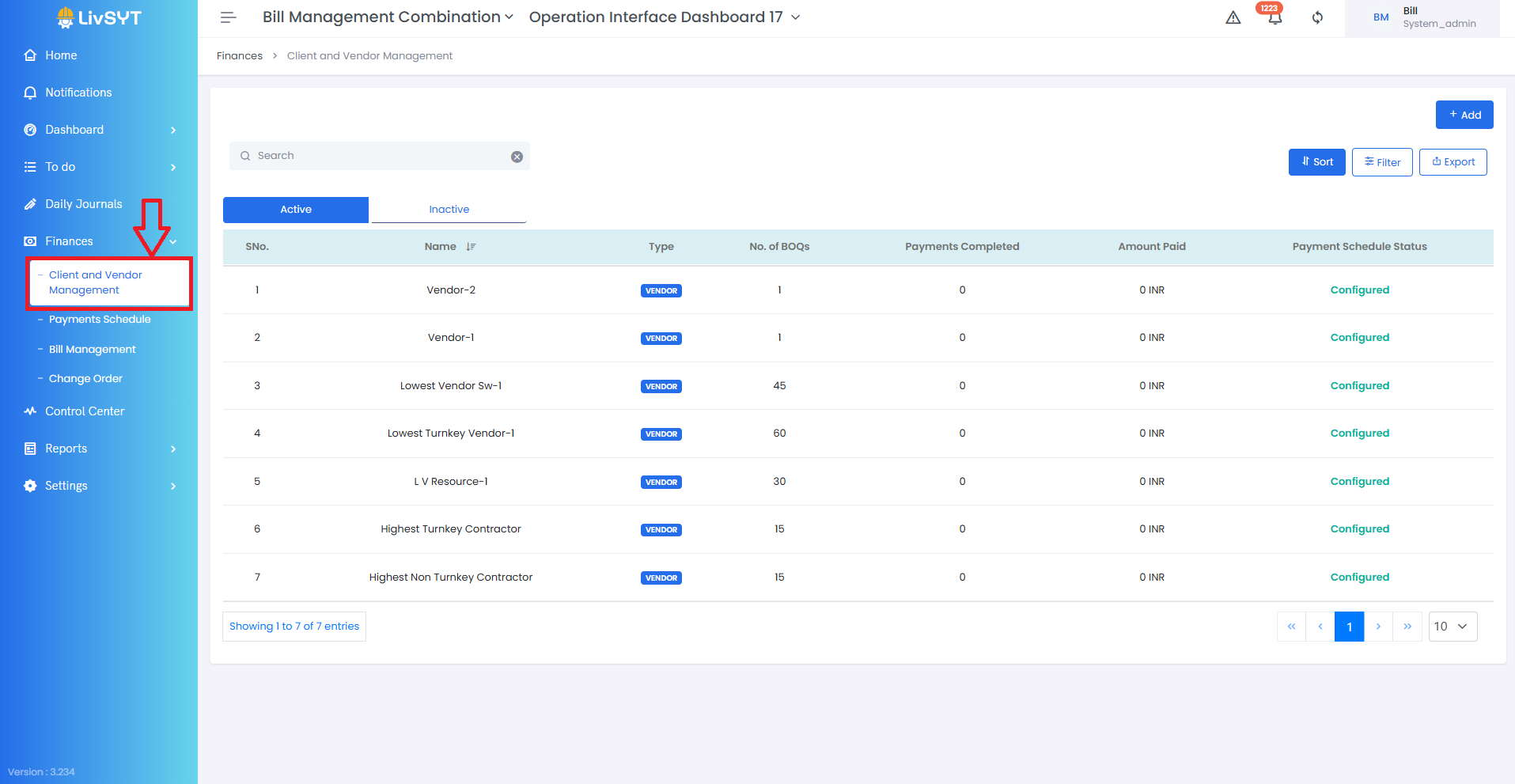
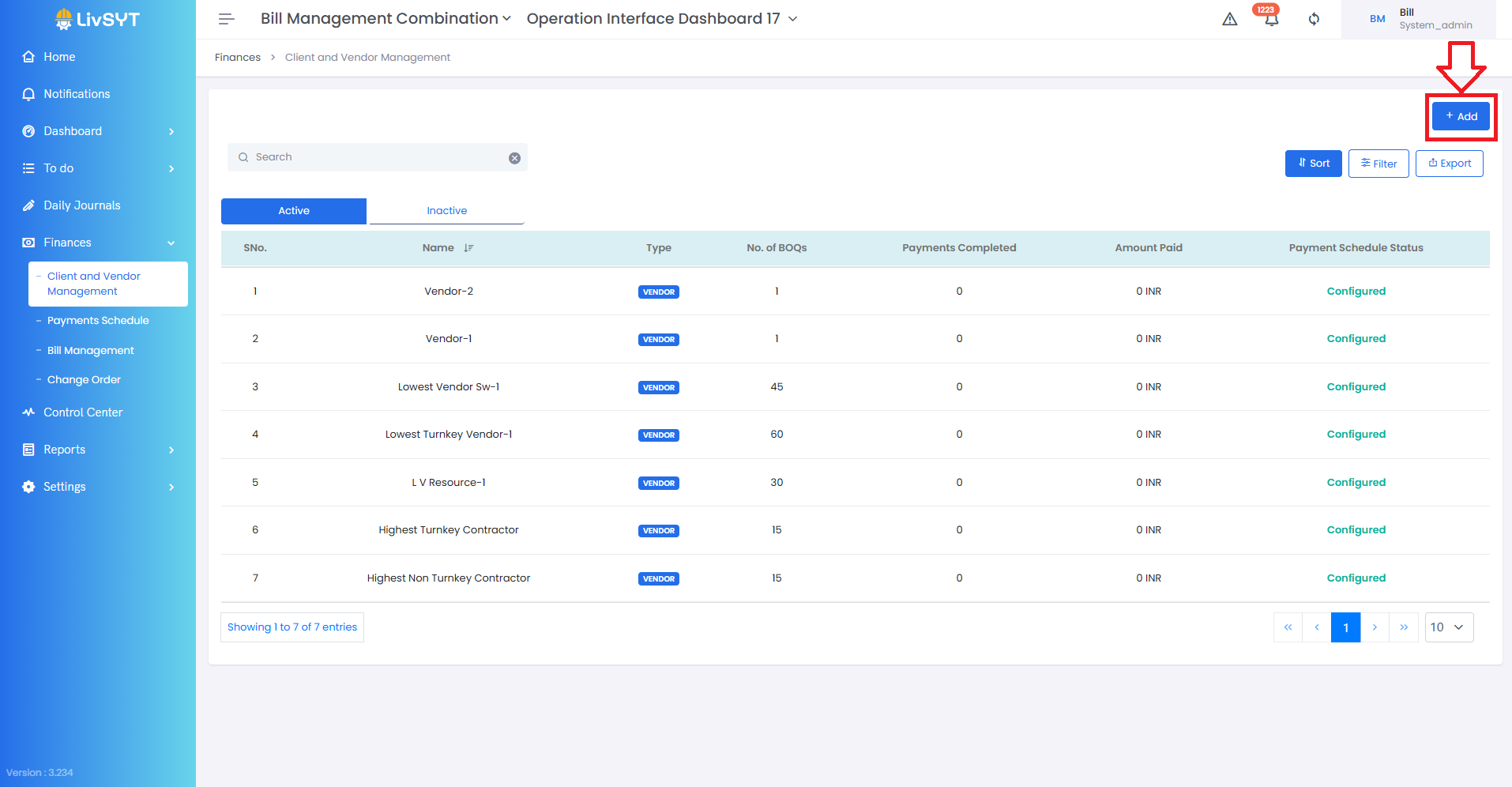
2) Start adding a vendor
- Click Add at the top-right corner.
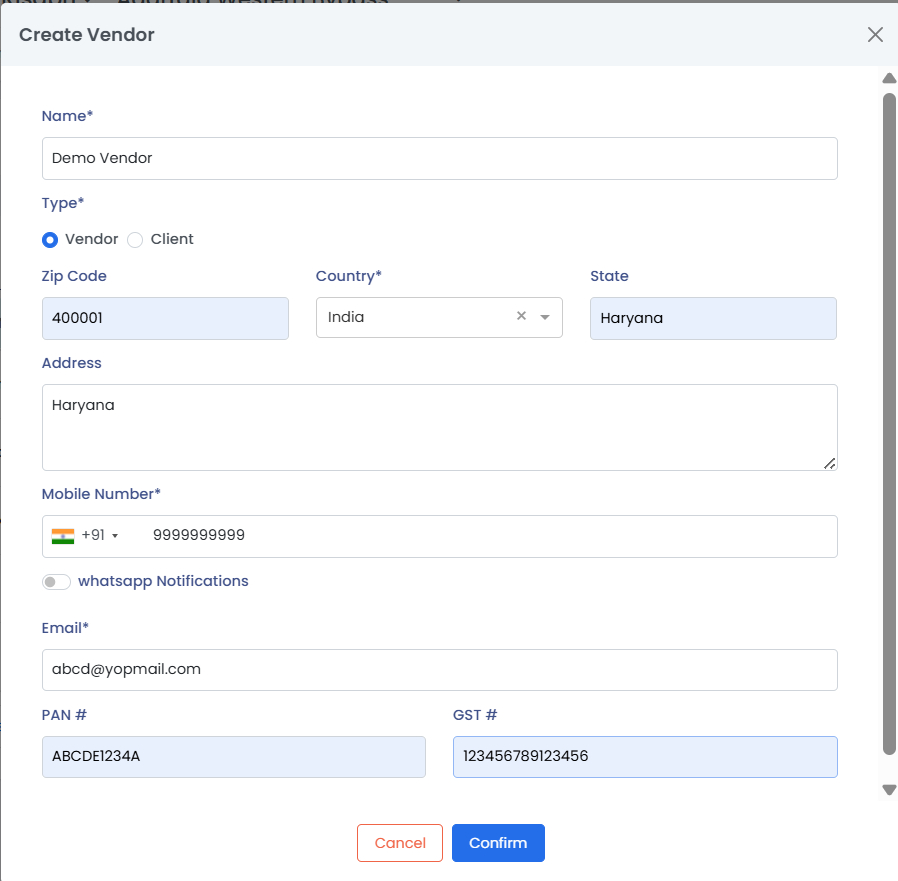
3) Enter vendor details
- Fill in all the required information for the new vendor.
4) Save the vendor
- Click Confirm to add the vendor.
Tips & Best Practices:
- Make sure all vendor details are accurate before saving.
- Keep vendor contact information updated for smooth billing workflows.
- If the vendor needs to be activated later, complete all mandatory fields.
- Add vendors only once to avoid duplicates.
- For any issues, contact LivSYT Support.
Related Resources:
How to make a Vendor Active?
Was this article helpful?
That’s Great!
Thank you for your feedback
Sorry! We couldn't be helpful
Thank you for your feedback
Feedback sent
We appreciate your effort and will try to fix the article