Purpose:
To explain how users can configure a Vendor by linking BOQ items and setting up the payment schedule in livSYT.
Step-by-Step Instructions:
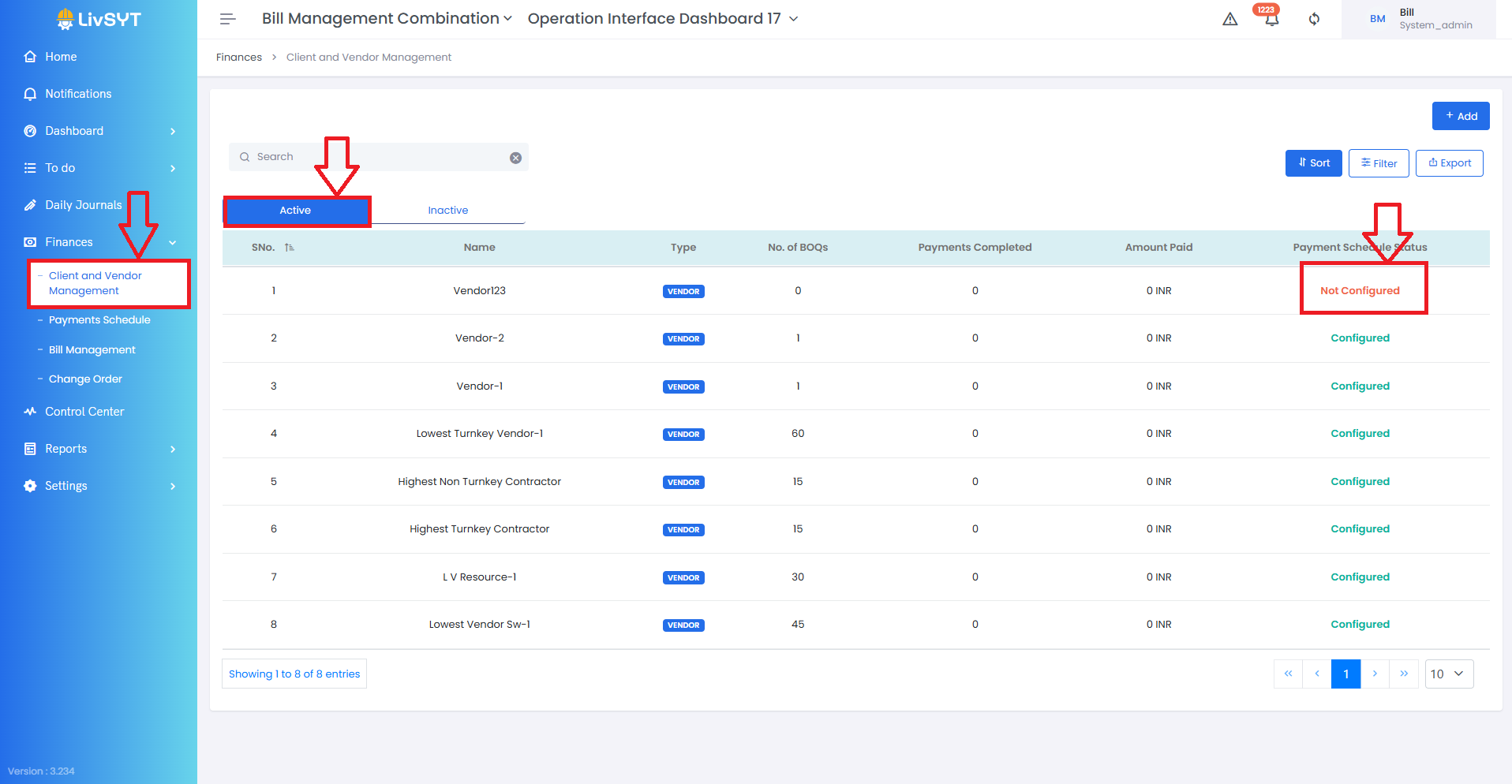
1) Open Vendor Management
- Go to Finances → Client and Vendor Management.
2) Select the vendor
- Under the Active tab, find and select the vendor you want to configure.
- Note: A vendor must be Active before it can be configured.
Refer to : How to make a Vendor Active?
Refer to : How to make a Vendor Active?
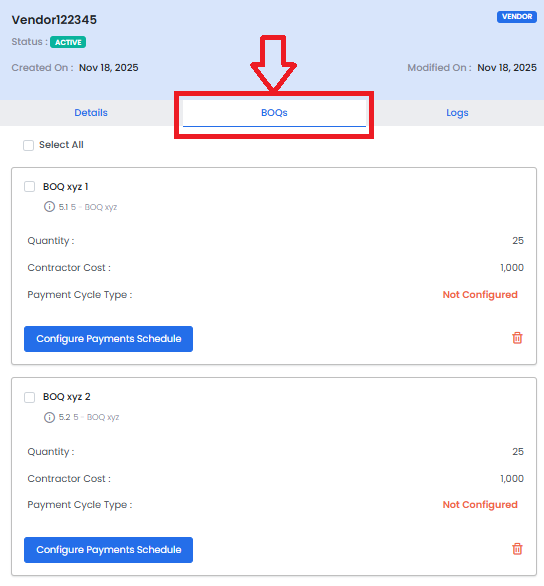
3) Open BOQ configuration
- After selecting the vendor, a panel opens on the right.
- Click on the BOQs tab.
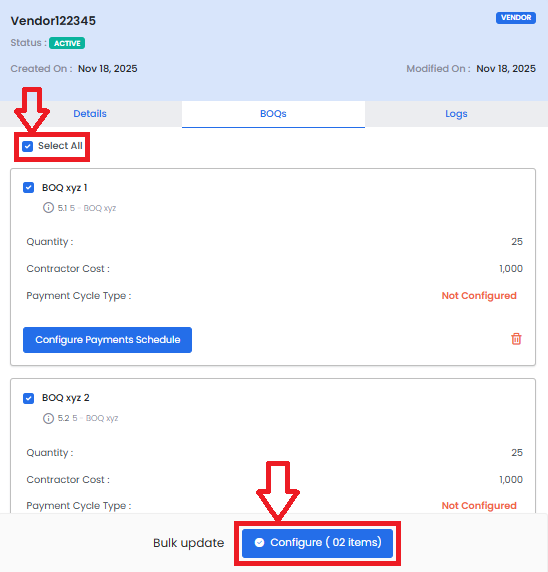
4) Select BOQ items
- Click Select All to choose all BOQ items that are not yet configured.
- Click Configure.
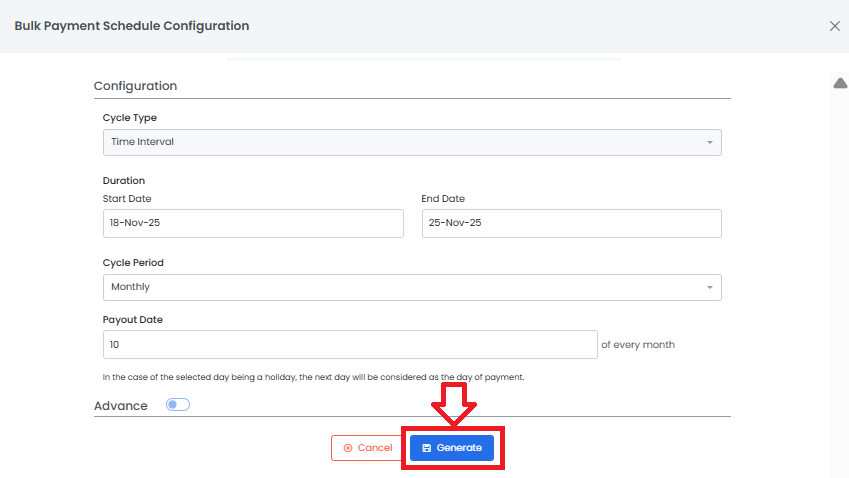
5) Set the payment schedule
- Enter the End Date up to which the vendor should be paid
(use the Project End Date if the vendor is to be paid till project completion).
- Select the Cycle Period (Monthly, Weekly, or Custom).
- Enter the Payout Date/Day.
- Click Generate.
6) Save the configuration
- Review the details and click Save to confirm the payment schedule.

7) Vendor configuration complete
- The vendor is now considered Configured.
Tips & Best Practices:
- Ensure the vendor is active before starting configuration.
- Double-check BOQ items before configuring, especially for large projects.
- Choose the correct payment cycle to match contract terms.
- Always verify payout dates to avoid payment delays.
- For any issues, contact LivSYT Support.
Related Resources:
How to add a vendor?
How to make a Vendor Active?
Was this article helpful?
That’s Great!
Thank you for your feedback
Sorry! We couldn't be helpful
Thank you for your feedback
Feedback sent
We appreciate your effort and will try to fix the article