Purpose:
To explain how users with permission can change the role of a user in livSYT.
1) Step-by-Step Instructions:
Note:
Only the System Admin or Project Admin can change a user’s role.
If you cannot see the option, contact the concerned admin.
2) Open User Settings
- Go to Organisation Settings → Users.
3) Select the user
- Click on the user whose role you want to change.
4) Open role settings
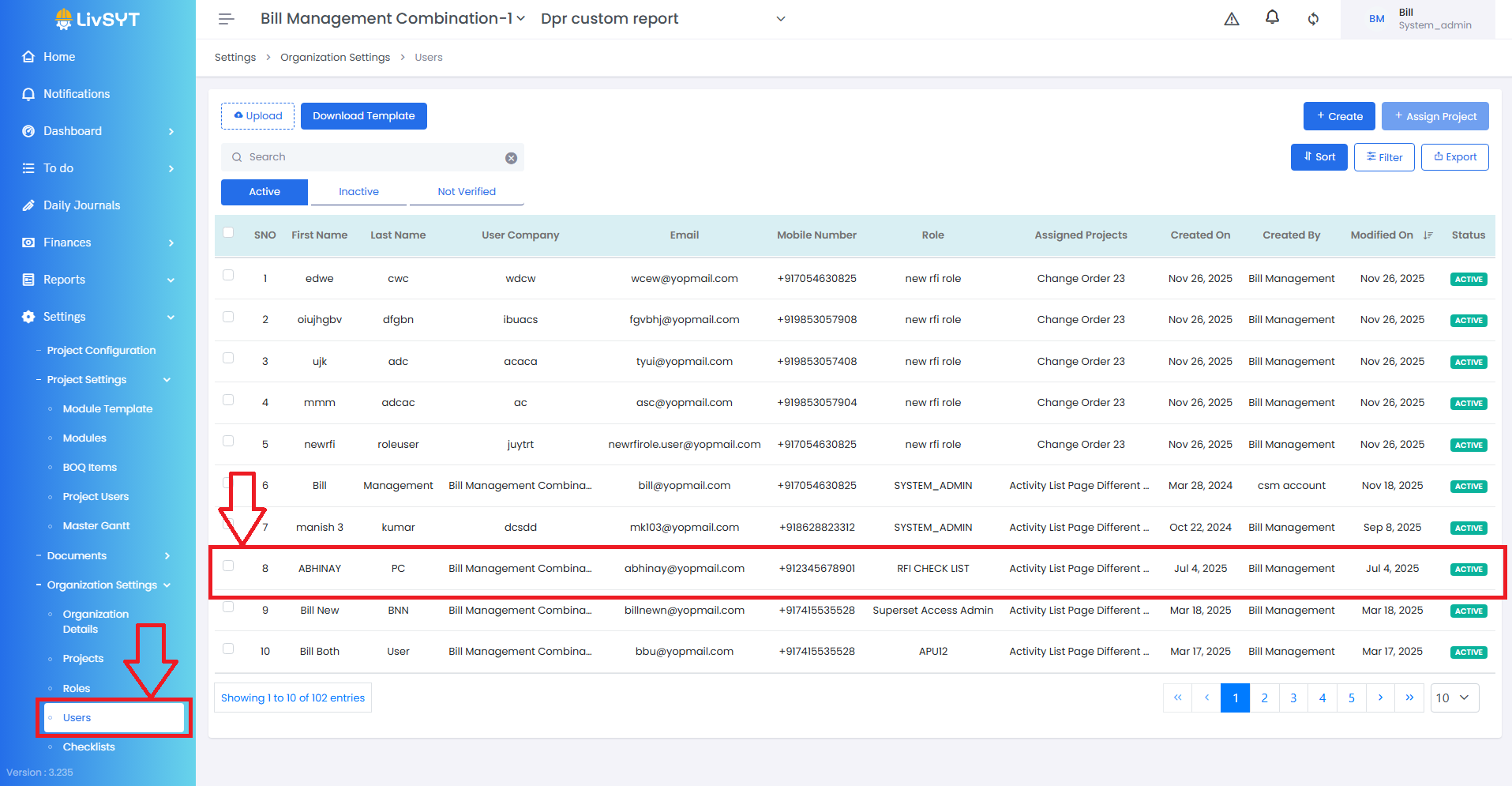
- A panel will appear on the right.
5) Change the role
- Click the Role dropdown.
- Select the new role you want to assign/change.
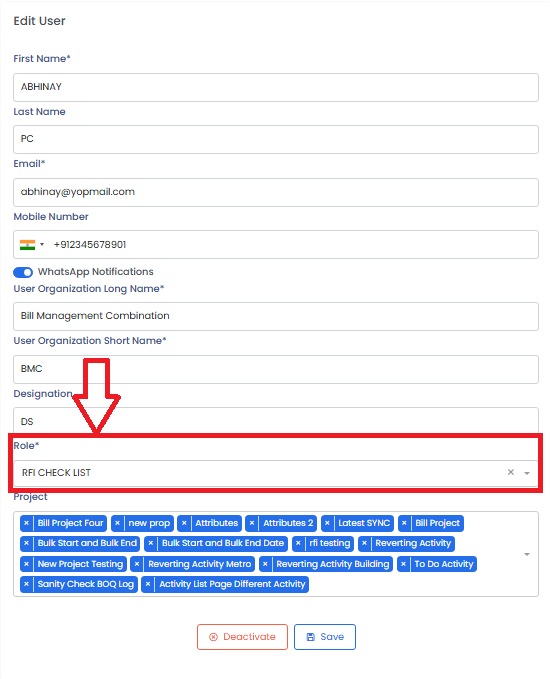
6) Save changes
- Click Save.
Tips & Best Practices:
- Assign roles carefully, as roles control permissions in the system.
- Make sure the new role matches the user’s responsibilities.
- Review user roles regularly, especially when team members change.
- If access options are not visible, contact the System Admin or Project Admin.
- For any issues, contact LivSYT Support.
Was this article helpful?
That’s Great!
Thank you for your feedback
Sorry! We couldn't be helpful
Thank you for your feedback
Feedback sent
We appreciate your effort and will try to fix the article