Purpose:
To guide users on how to upload and attach documents or photos to individual checklist line items within an Inspection.
Step-by-Step Instructions:
1. Open the Inspection section
- On the Home Page, click on Inspection.
- Go to the Open section and select the Inspection you want to review.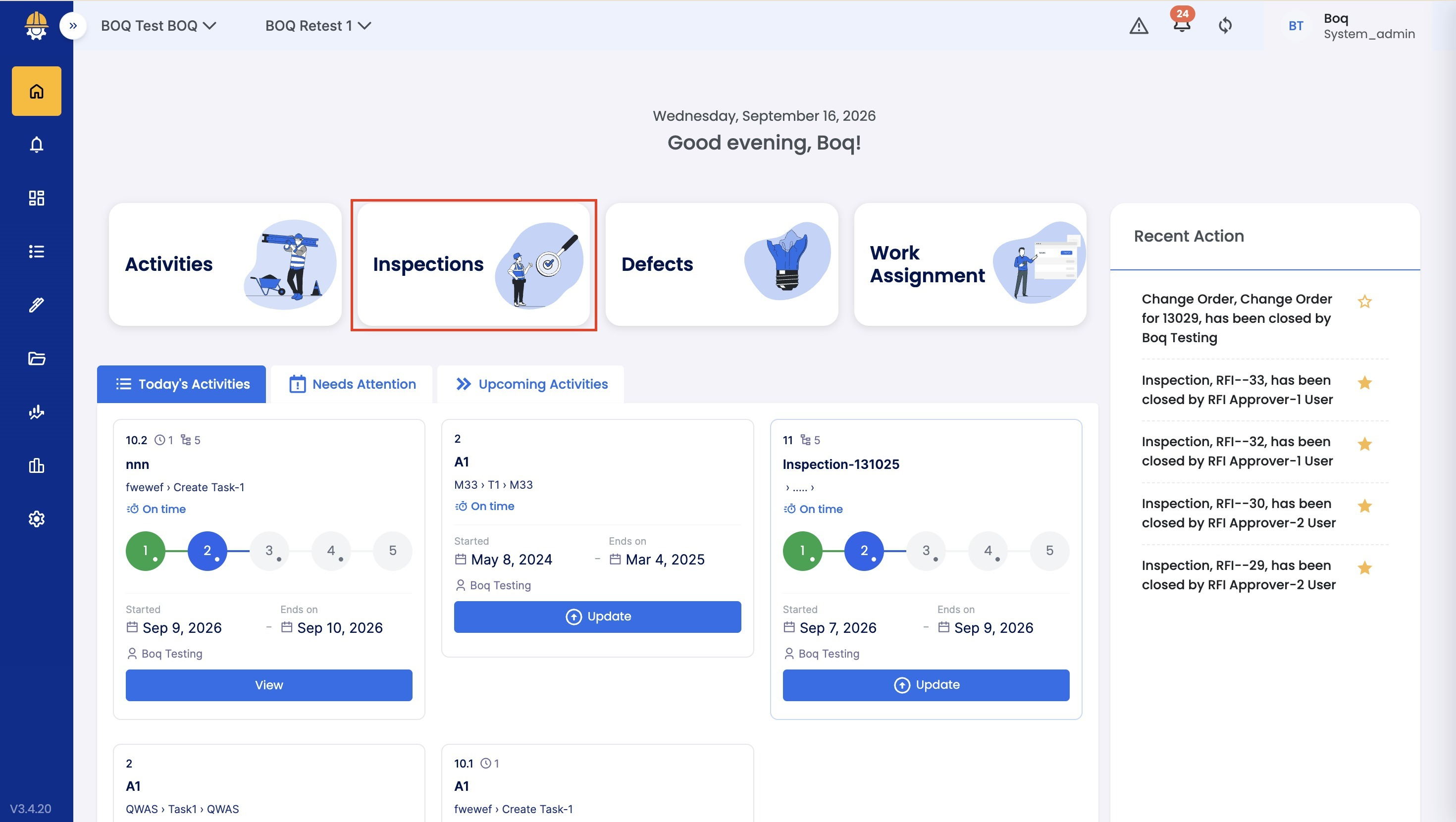
- The Inspection details section will open on the right side of the screen.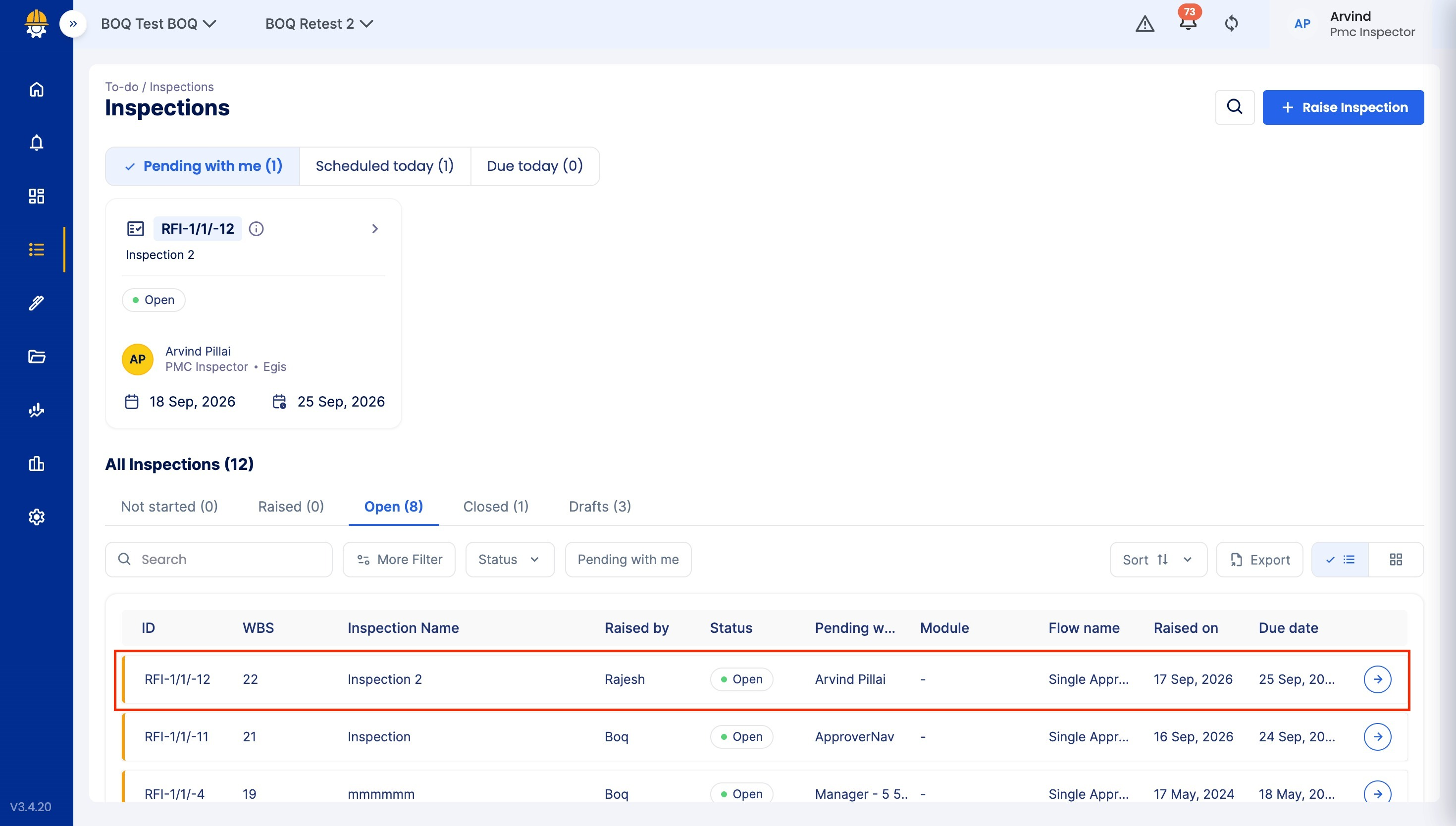
2. Access the checklist
- Click on the drop-down box under the Checklist section to view all checklist items.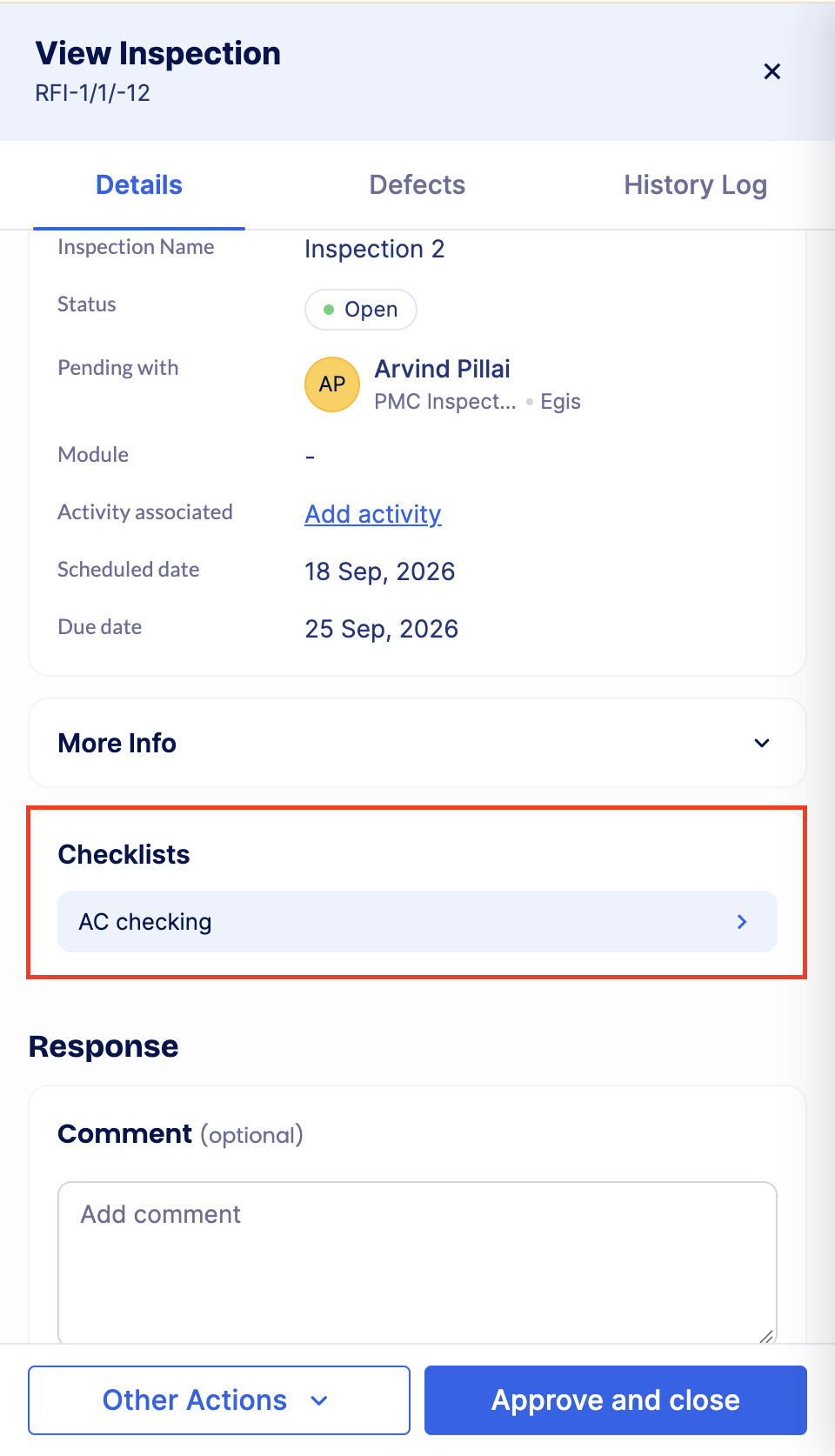
3. Attach files to line items
- For each checklist line item, you’ll see options to Attach, Comment, and Raise Defect.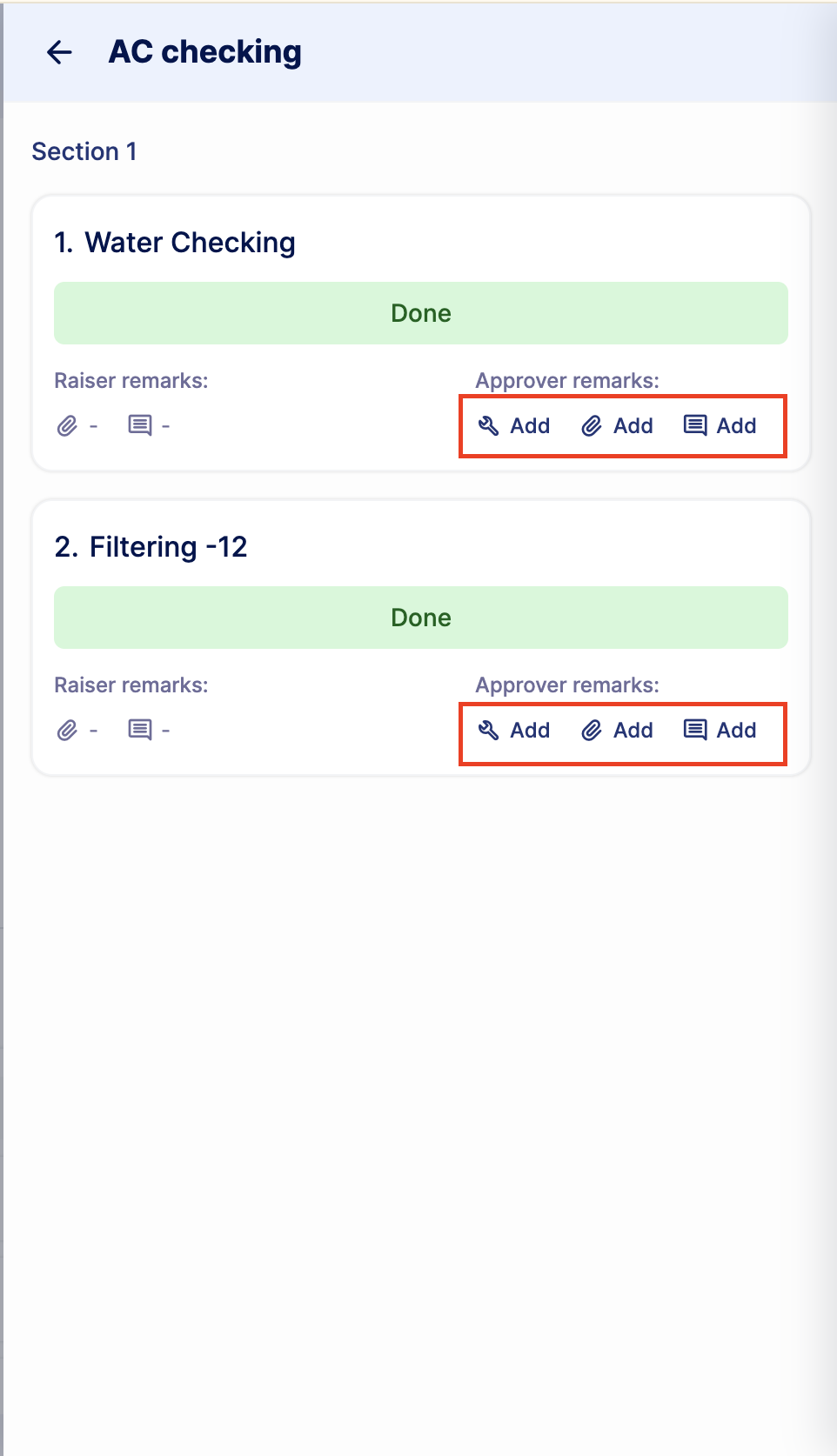
- Click on Attach to upload your file (image, document, etc.).
- Choose the file from your device and confirm the upload.
4. Verify the attachment
- Once uploaded, the file will appear linked to that checklist line item.
- Click on Save
Tips & Best Practices:
- Always attach clear and relevant photos or documents to help the approver understand the work done.
- Do not upload large CAD files or unnecessary images that slow down loading.
- Keep attachments organized to make the Inspection review faster and smoother.
- For any issues, contact LivSYT Support.
Related Resources:
How to Raise an Inspection?
Was this article helpful?
That’s Great!
Thank you for your feedback
Sorry! We couldn't be helpful
Thank you for your feedback
Feedback sent
We appreciate your effort and will try to fix the article