Purpose:
Learn how to attach documents or photos to an activity in livSYT.
Step-by-Step Instructions:
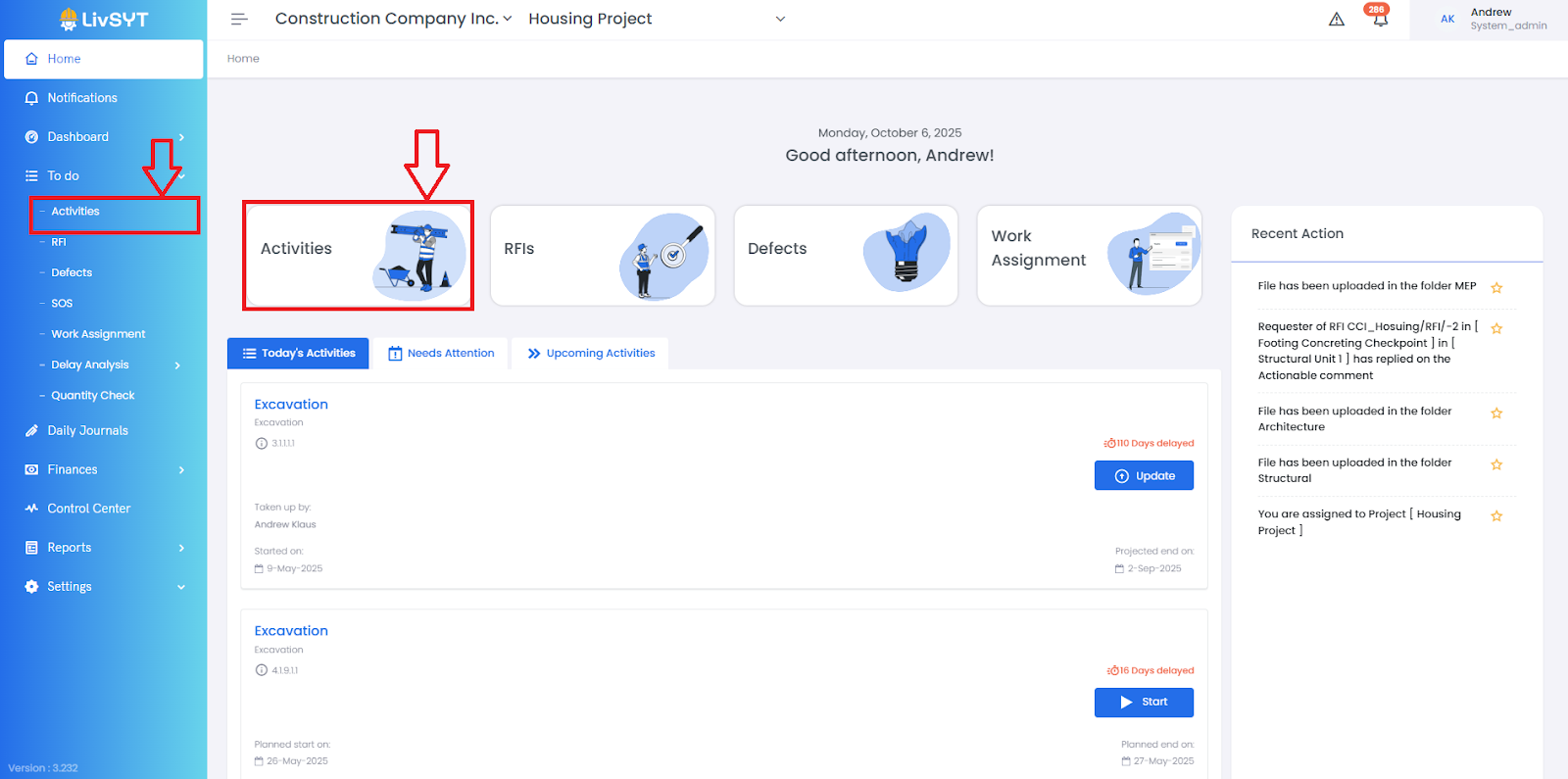
1. Open Activities Page
- From the Home page, click Activities.
- Or go to To-Do → Activities.
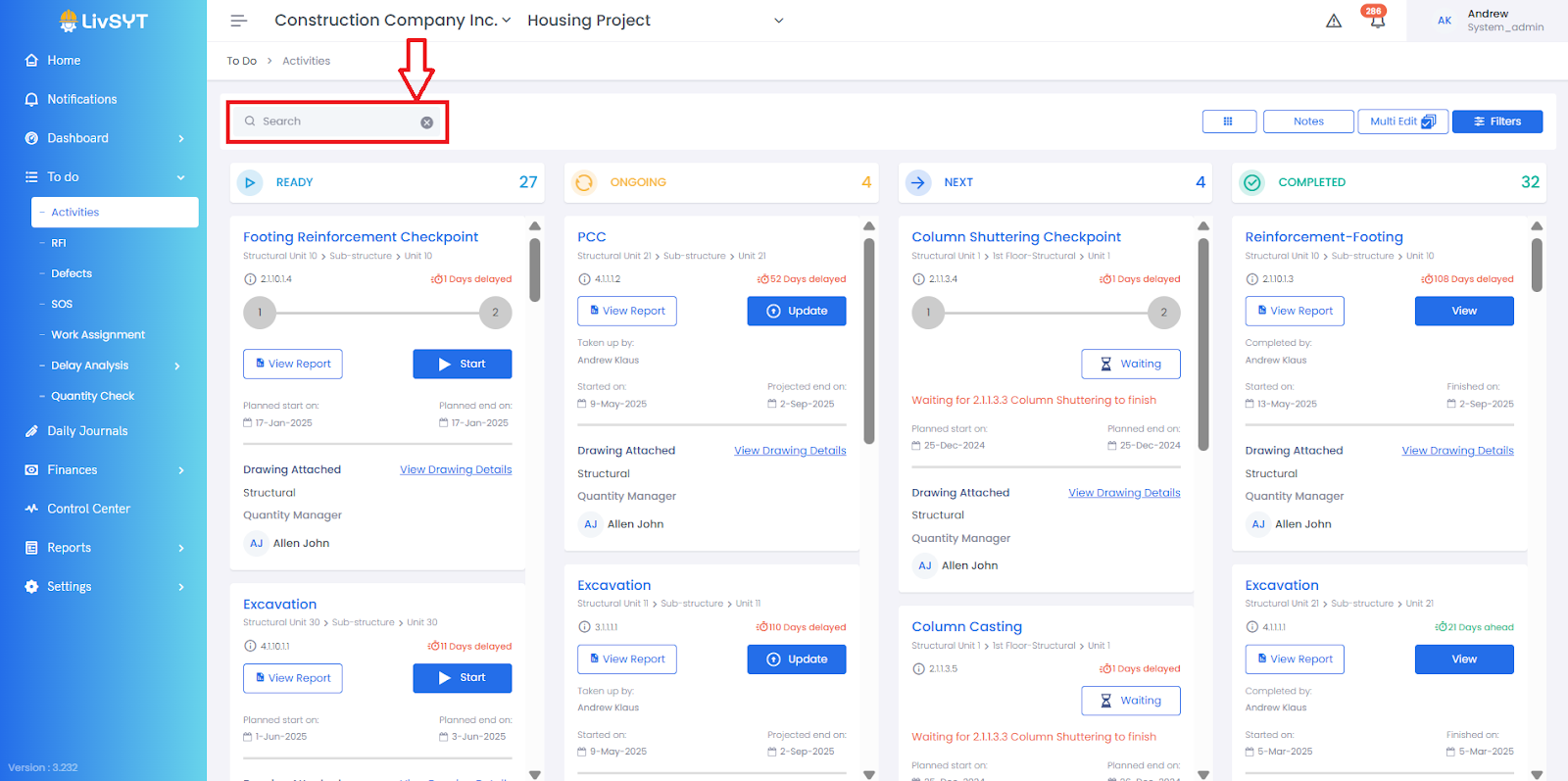
2. Find the Activity
- Type the activity name in the search bar.
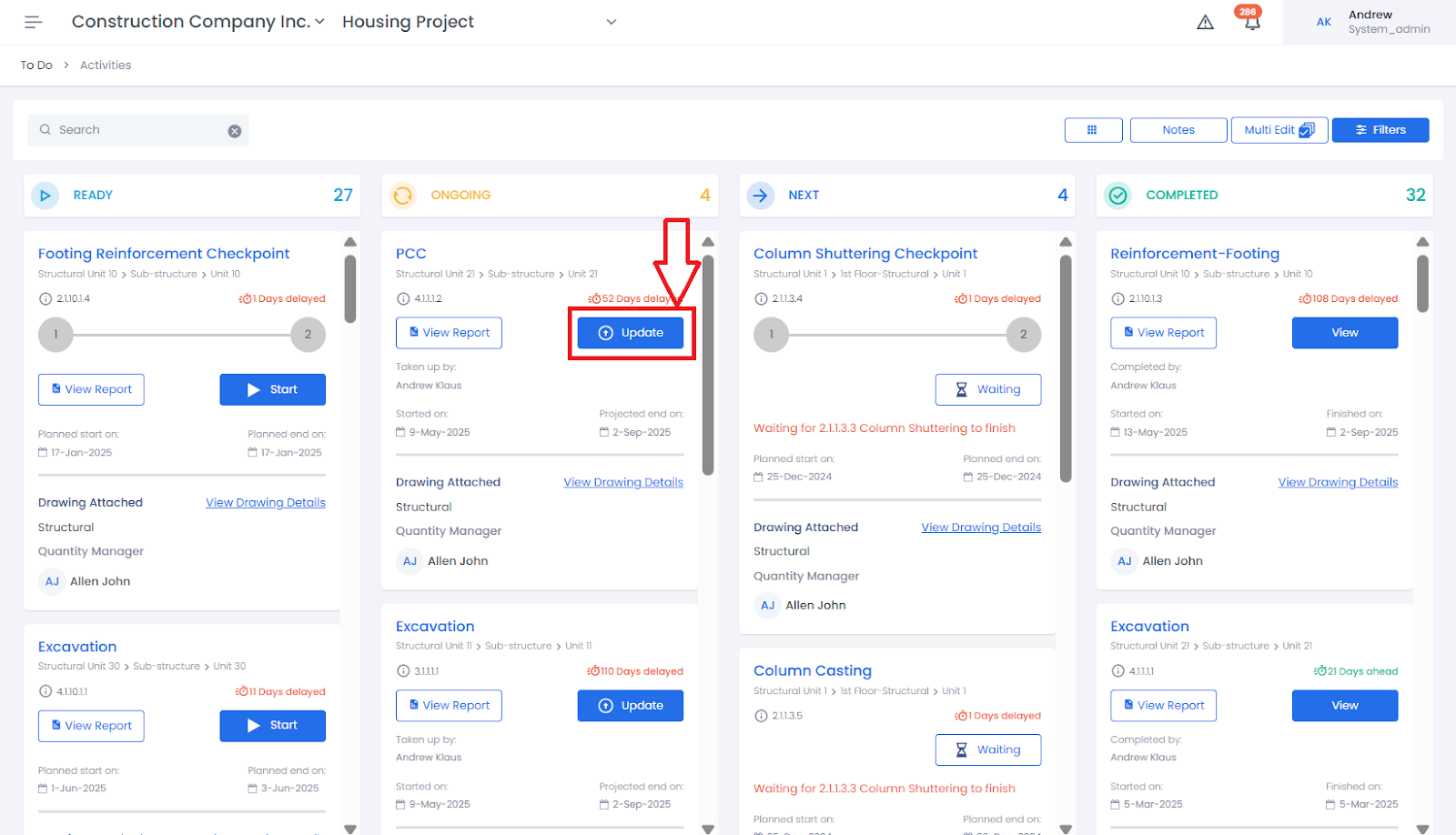
3. Open Update
- Click the Update button next to that activity.
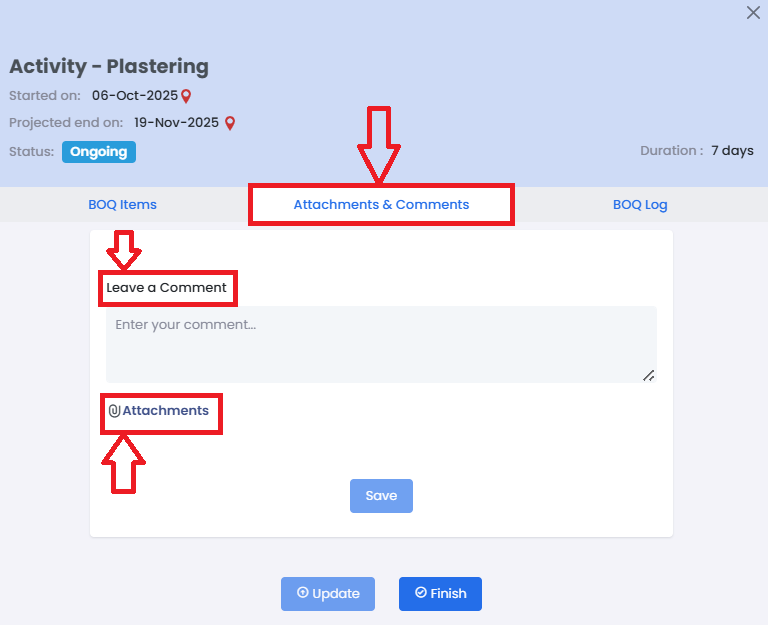
4. Go to Attachments Section
Under the Attachments and Comments section,
- Click to attach documents or photos from your device.
- You can also add a short description for each file (to explain what it is).
5. Save Changes
- After attaching, make sure to click on save
Tips and Practices:
- Attach clear and relevant files only — for example, site photos or approved documents — to help keep project records organized.
- For any issues, contact LivSYT Support.
Related Resources:
Is there a file size limit for uploads?
Was this article helpful?
That’s Great!
Thank you for your feedback
Sorry! We couldn't be helpful
Thank you for your feedback
Feedback sent
We appreciate your effort and will try to fix the article