Purpose:
To learn how an approver can review, take action, and approve an Inspection in livSYT.
Video Walkthrough:
Step-by-Step Instructions:
1. Open the Inspection section
- On the Home Page, click on Inspection.
- Go to the Open section and select the Inspection you want to review.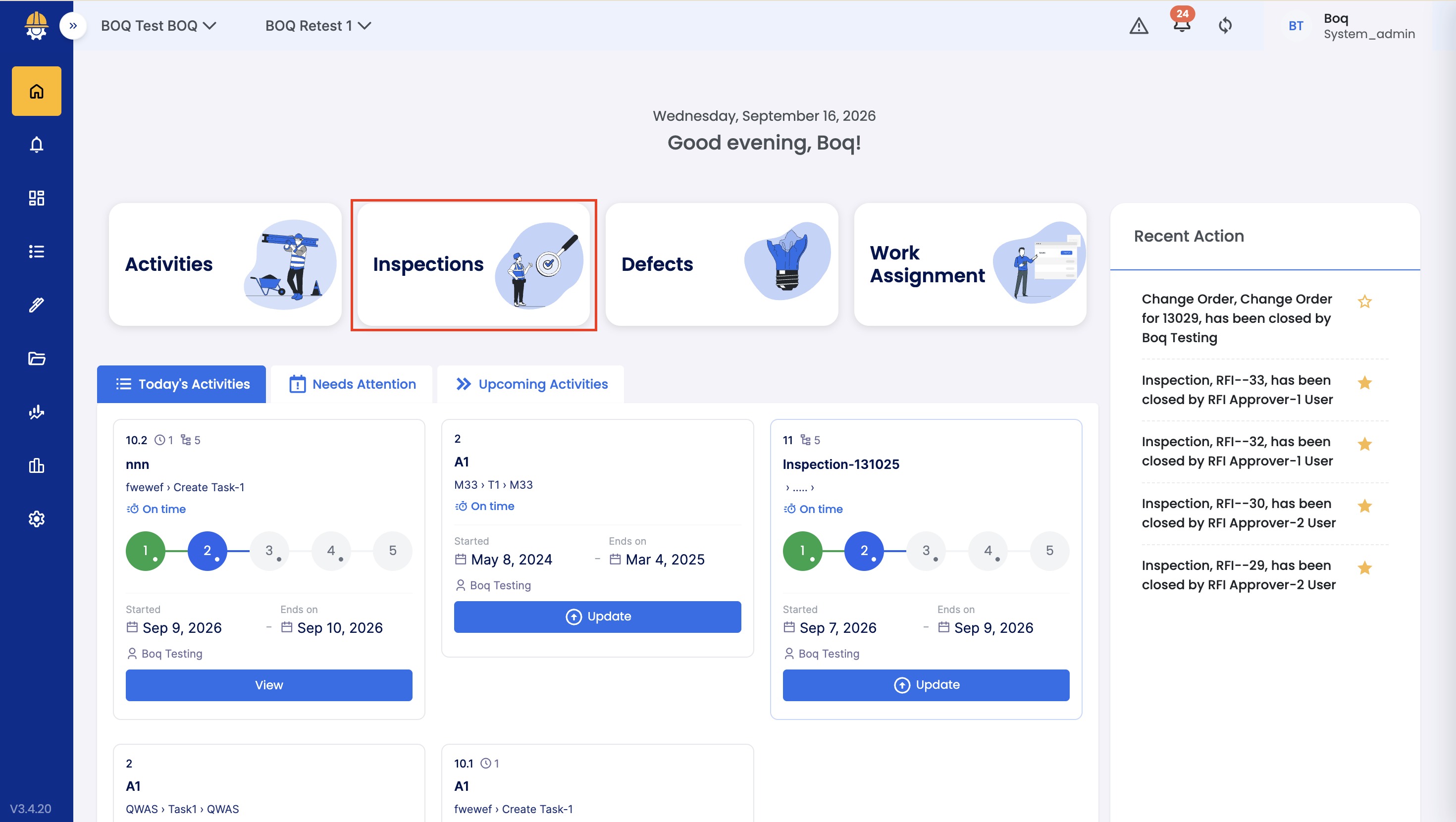
2. Review the Inspection details
- The Inspection that is pending with the Approver will appear under the Open tab.
- Select the Inspection to view its details.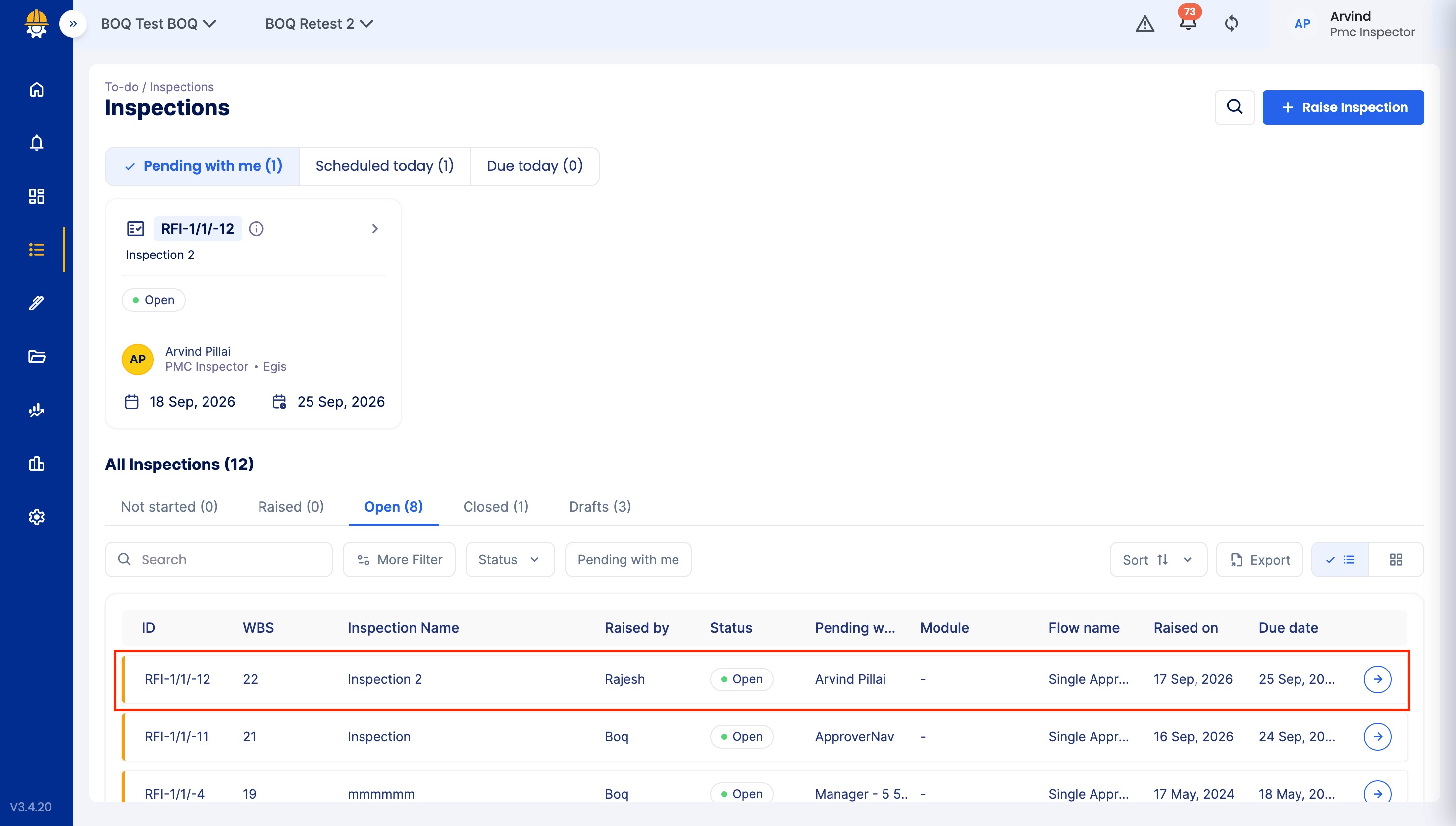
3. Raise defects if needed
- If you find issues, you can raise a Defect by clicking on Other Actions
- By clicking on the Raise Defect button.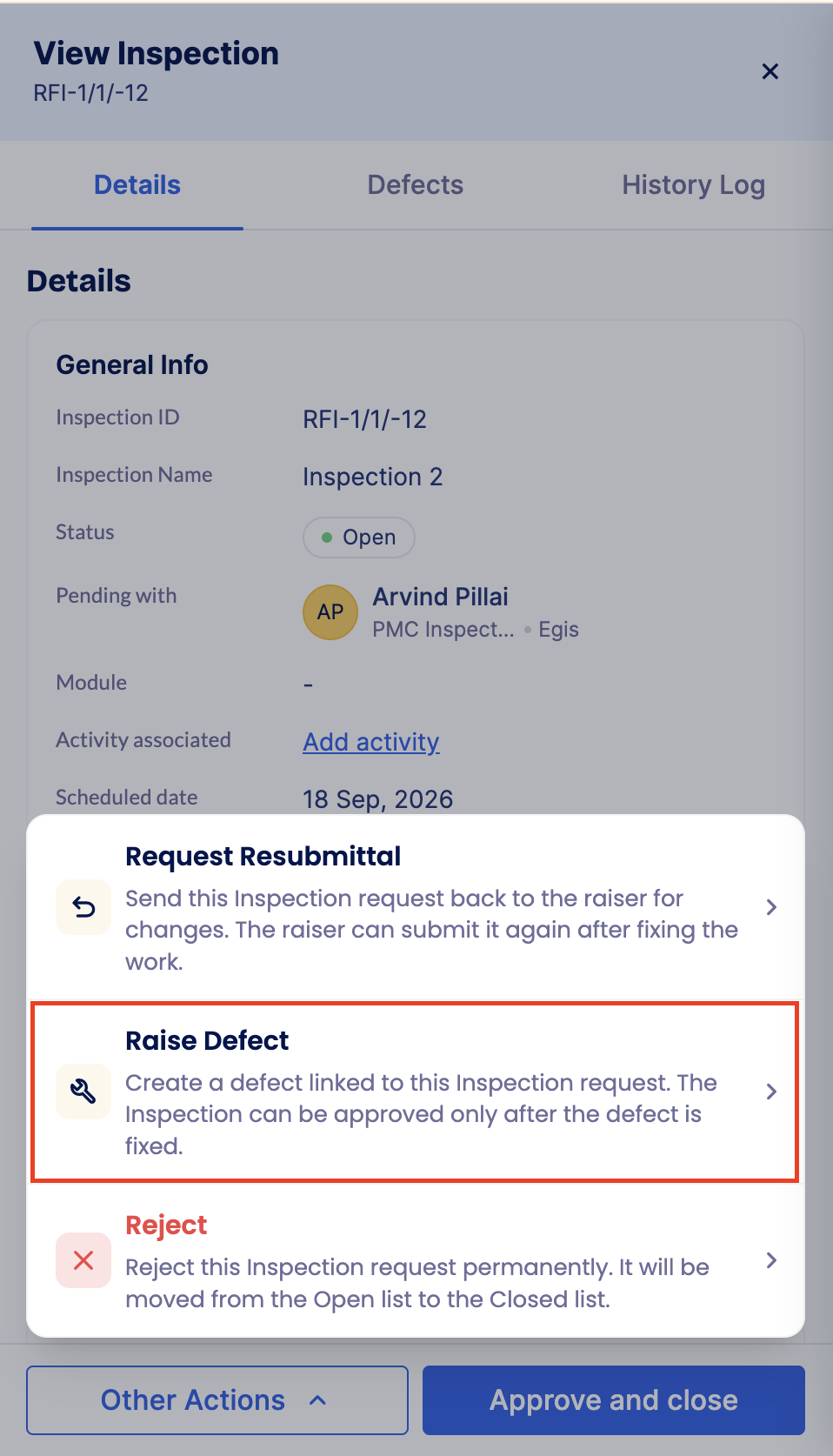
4. Check the History log
- Click on the History Log section to view the Inspection's timeline, including date and time stamps.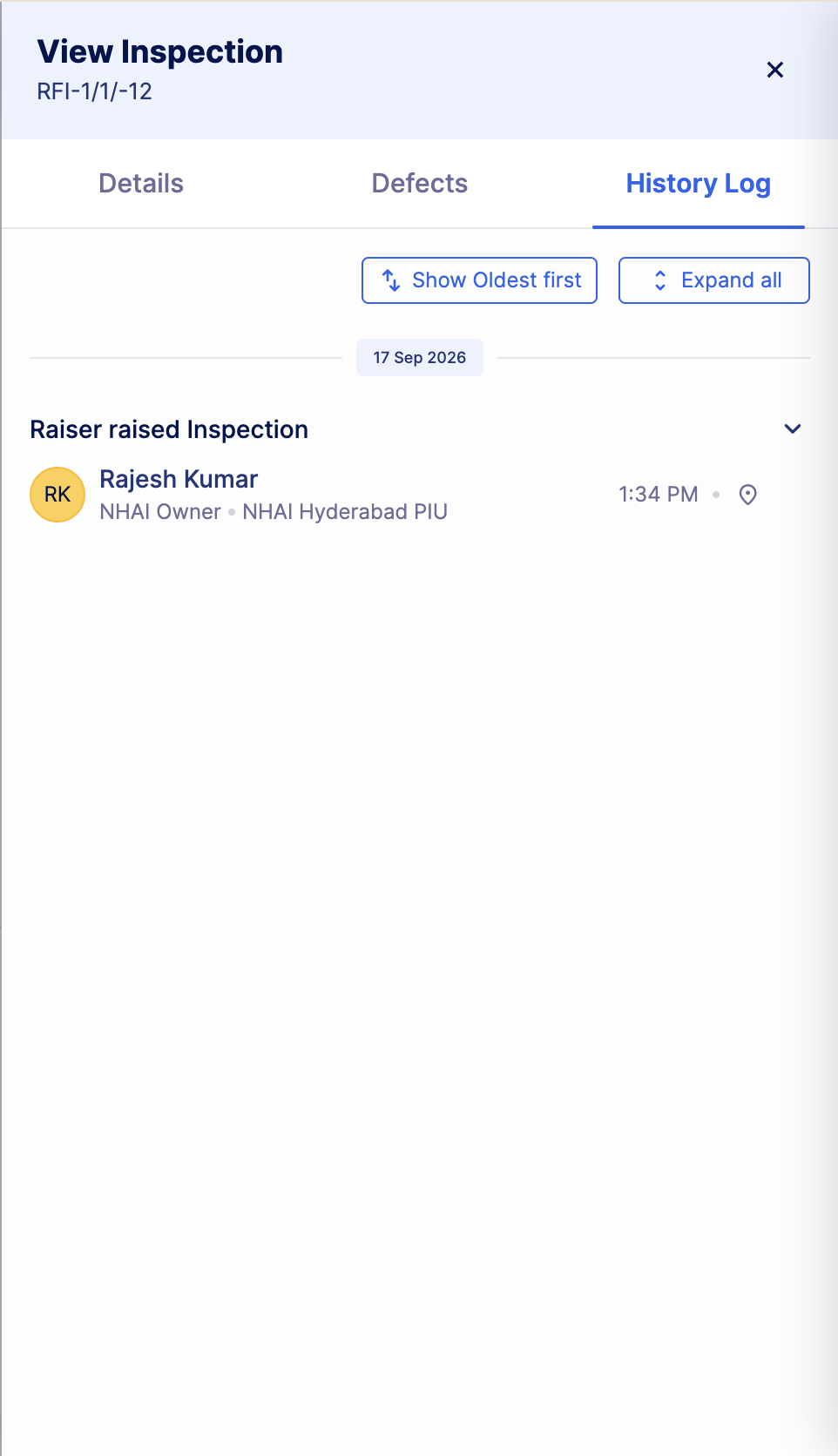
5. Approve the Inspection
- Based on the inspection results, you can Approve.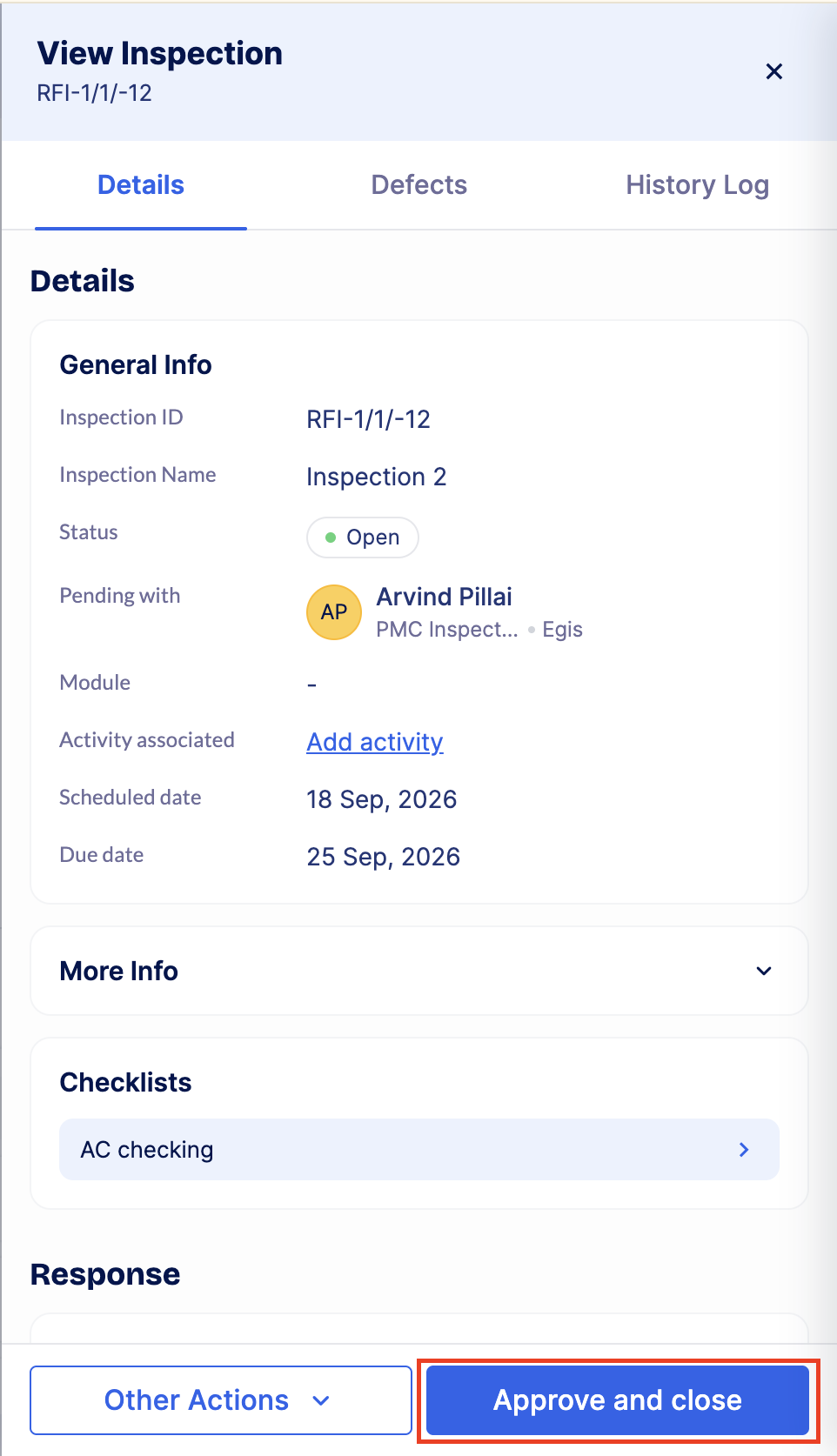
Tips & Best Practices:
- Always check the checklist items carefully before approving to make sure the work matches site quality.
- If something looks incomplete or wrong, use the Raise Defect option instead of rejecting the whole Inspection.
- Check the History Log section to see when and by whom the Inspection was created or updated.
- Add clear comments when rejecting or resubmitting an Inspection, so the team knows what to fix.
- Approve the Inspection only when you are fully satisfied with the inspection and supporting attachments.
- For any issues, contact LivSYT Support.
Related Resources:
How to raise an Inspection?
Was this article helpful?
That’s Great!
Thank you for your feedback
Sorry! We couldn't be helpful
Thank you for your feedback
Feedback sent
We appreciate your effort and will try to fix the article